# Expense Accrual Automation
### Expense Accrual Dashboard
1. Navigate to **Charted > Charted > Home**.
2. Select **Accruals** in the sidebar.

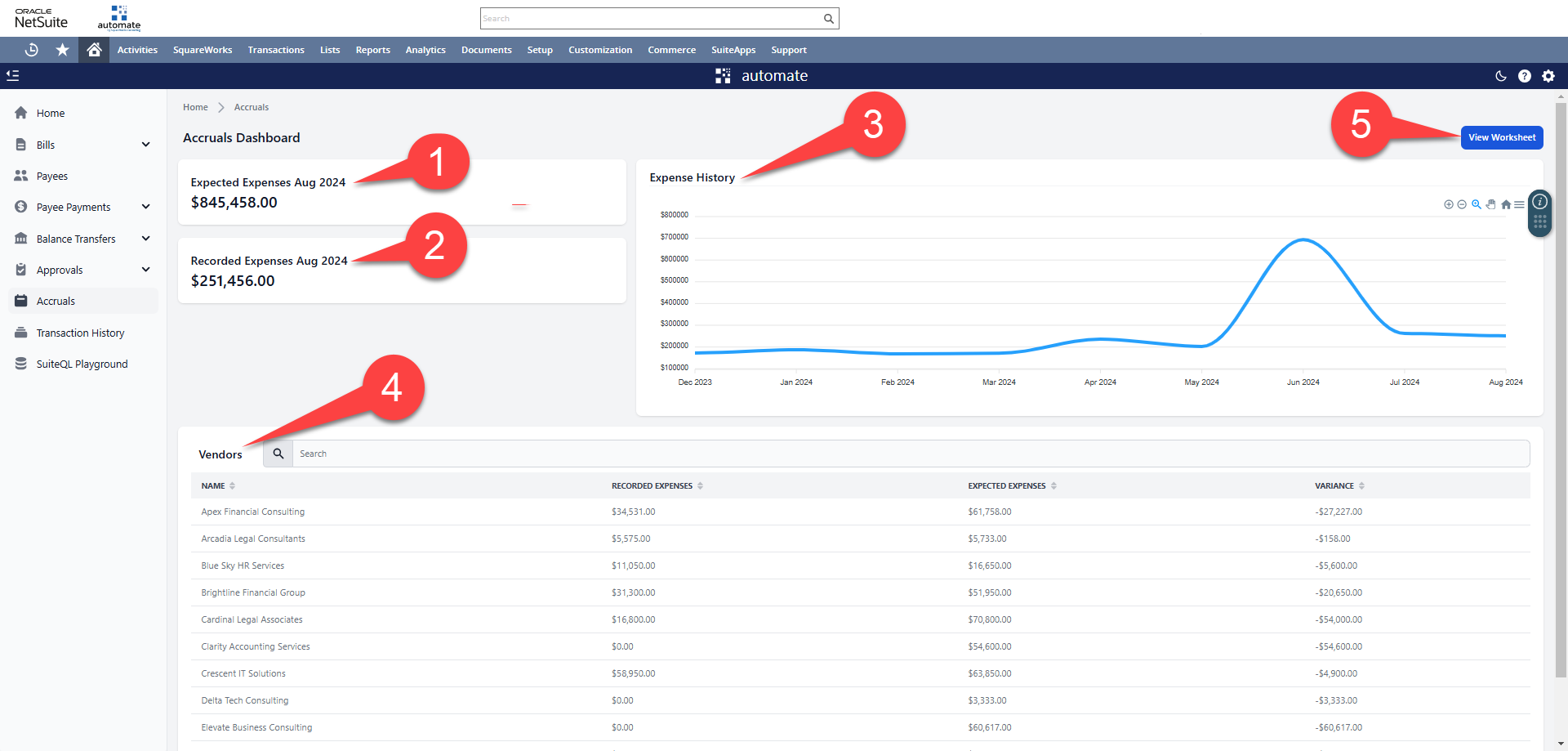
3. Review Expense Accrual Dashboard
1. **Expected Expenses**: This figure represents the total expected expenses across all vendors with Purchase Order or General Accruals enabled.
2. **Recorded Expenses**: This figure represents the total posted expenses across all vendors with Purchase Order or General Accruals enabled.
3. **Expense History**: This line graph represents a historical view of posted expenses per period across all vendors with Purchase Order or General Accruals enabled.
4. **Vendors**: A comprehensive list of vendors with an assigned accrual type (either Purchase Order or General Accruals), including estimated amounts, recorded amounts, and variances for each vendor. Clicking on a vendor will open a detailed vendor view.
5. **View Worksheet**: Navigates to the Accruals Worksheet to perform final review and adjustments to accrual entries.
### Vendor Detail
1. Navigate to **Charted > Charted > Home**.
2. Select **Accruals** in the sidebar.
3. Select a Vendor from the vendor table.
4. Review Vendor Detail Dashboard
1. **Expected Expenses**: This figure represents the total expected expenses for this vendor in the current accrual period.
2. **Recorded Expenses**: This figure represents the total posted expenses for this vendor in the current accrual period.
3. **Expense History**: This line graph represents a historical view of posted expenses per period for this vendor.
4. **Transactions**: A comprehensive list posted transactions for this vendor including Transaction Number, Type, Date, Posting Period, Amount, Memo, and Status.
5. **Contact Vendor**: Opens an email message to the email address listed on the vendor record for convenient outreach of any expense related questions or necessary confirmations.
### Accruals Worksheet
1. Navigate to **Charted > Charted > Home**.
2. Select **Accruals** in the sidebar.
3. Select **View Worksheet** in the upper right hand corner.
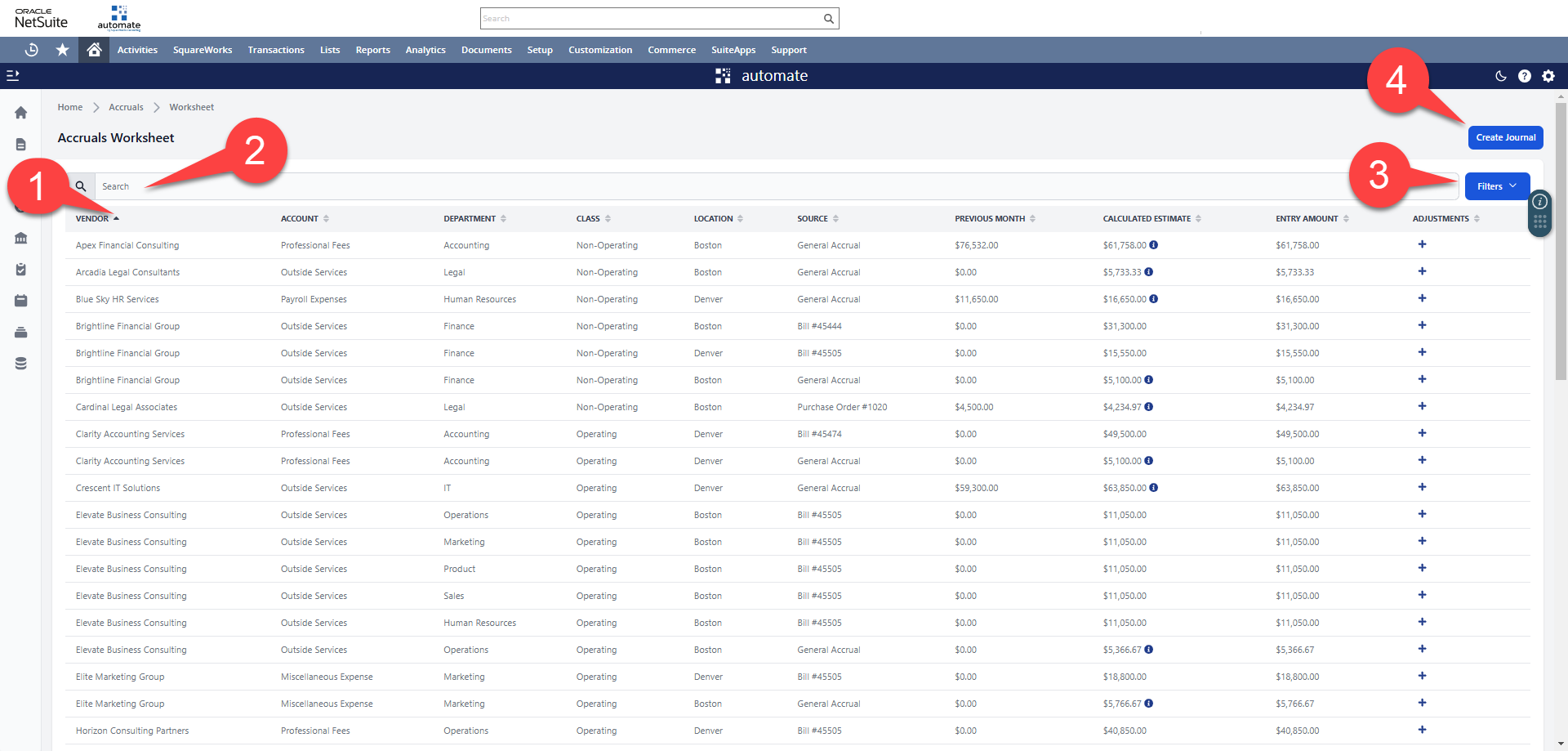
4. Review the Accruals Worksheet
1. **Worksheet Table**: This table represents the GL level detail of all expense accrual lines that need to be reviewed. Columns include:
1. *Vendor*: The vendor this journal entry will be associated with.
2. *Account*: The general ledger account this journal entry will be associated with.
3. *Department*: The department this journal entry will be associated with.
4. *Class*: The class this journal entry will be associated with.
5. *Location*: The location this journal entry will be associated with.
6. *Source*: Displays whether this entry was based off a Purchase Order, General Accrual, or transaction pending approval. If the source is a transaction, clicking on the transaction name will open the source transaction in a new tab.
7. *Previous Month*: The amount for this line posted in the previous period.
8. *Calculated Estimate*: The total expense amount calculated for this line.
9. *Entry Amount*: The amount that will be recorded, taking into consideration already posted amount and any manual adjustments.
10. *Adjustment*: The ability to manually override any detail on the accruals worksheet and provide a justification for the update.
2. **Search**: The search bar allows you to search any field that is displayed in the worksheet table and quickly filter down to the applicable rows.
3. **Filters**: if operating in a One World Account, filter worksheet to a single subsidiary for review of all applicable accrual entries.
4. **Create Journal**: This button will pre-populate the Accrual Journal Entry after review of the worksheet is complete.
### Journal Entry Creation
1. From the Accruals Worksheet, select the **Create Journal** Button. in the upper right hand corner.
2. Review Journal Lines.
3. Click Save to finalize the journal entry creation.