> For the complete documentation index, see [llms.txt](https://docs.charted.com/ap-automation/llms.txt). Markdown versions of documentation pages are available by appending `.md` to page URLs; this page is available as [Markdown](https://docs.charted.com/ap-automation/~/revisions/5mWfap1wj08VLBd4NLdS/charted-features/payment-automation/managing-payee-invitations.md).
# Managing Payee Invitations
### Abstract
Managing payee invitations ensures vendors submit business and banking details securely, keeping information current and reducing manual follow‑up. Administrators can send invitations outside the import workflow, monitor their status, and resend or cancel them as needed.
For instance, when a payee switches bank accounts mid‑year, via **Payee Invites** they can update their **ACH** routing information — eliminating insecure email exchanges and preventing failed payments.
This article explains how to oversee payee invitations. You will learn how to open the payee's list, verify import options, check invitation status, resend or cancel invites, and guide payees to use invitations for secure profile updates.
### Managing Payee Invitations
Managing payee invitations lets administrators send secure email invitations to vendors so they can enter or update payment and business details. The feature tracks each invite’s status — open or closed — and provides options to resend reminders or cancel incorrect invitations, ensuring payee information stays accurate without exposing sensitive data.
{% hint style="info" %}
We recommend you to always use Payee Invites whenever a payee needs to update their account information to minimize risk of fraud and incorrect payment details.
{% endhint %}
Follow these steps to manage and track payee invitations:
1. To begin, first, hover over the **Charted** menu, then **AP Automation**, and click the **Home** tab:
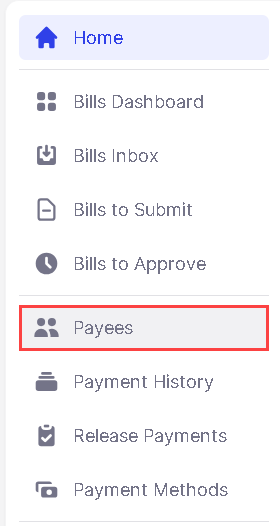
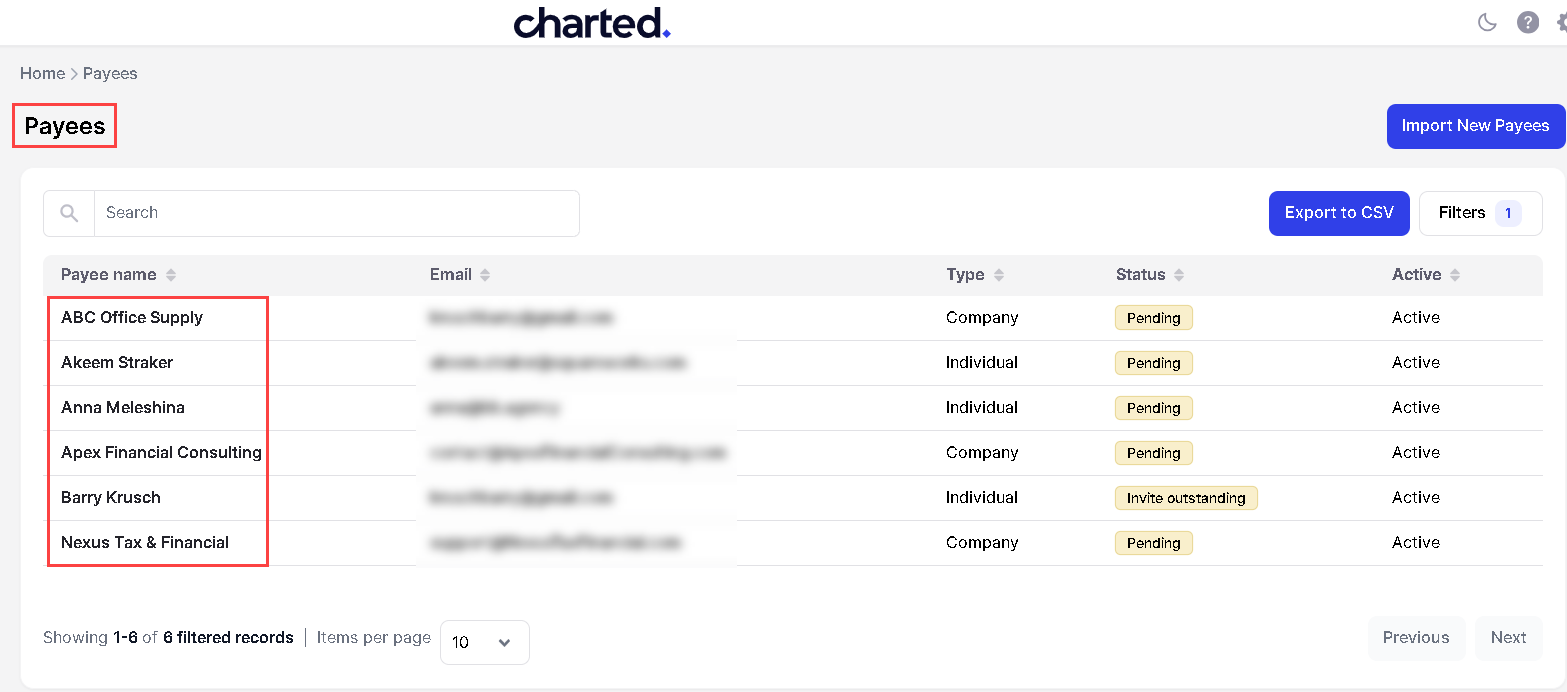
2. **Next**, click the **Payees** option on the left to open the **Payees** list; here, you will see all the payees you have imported:\
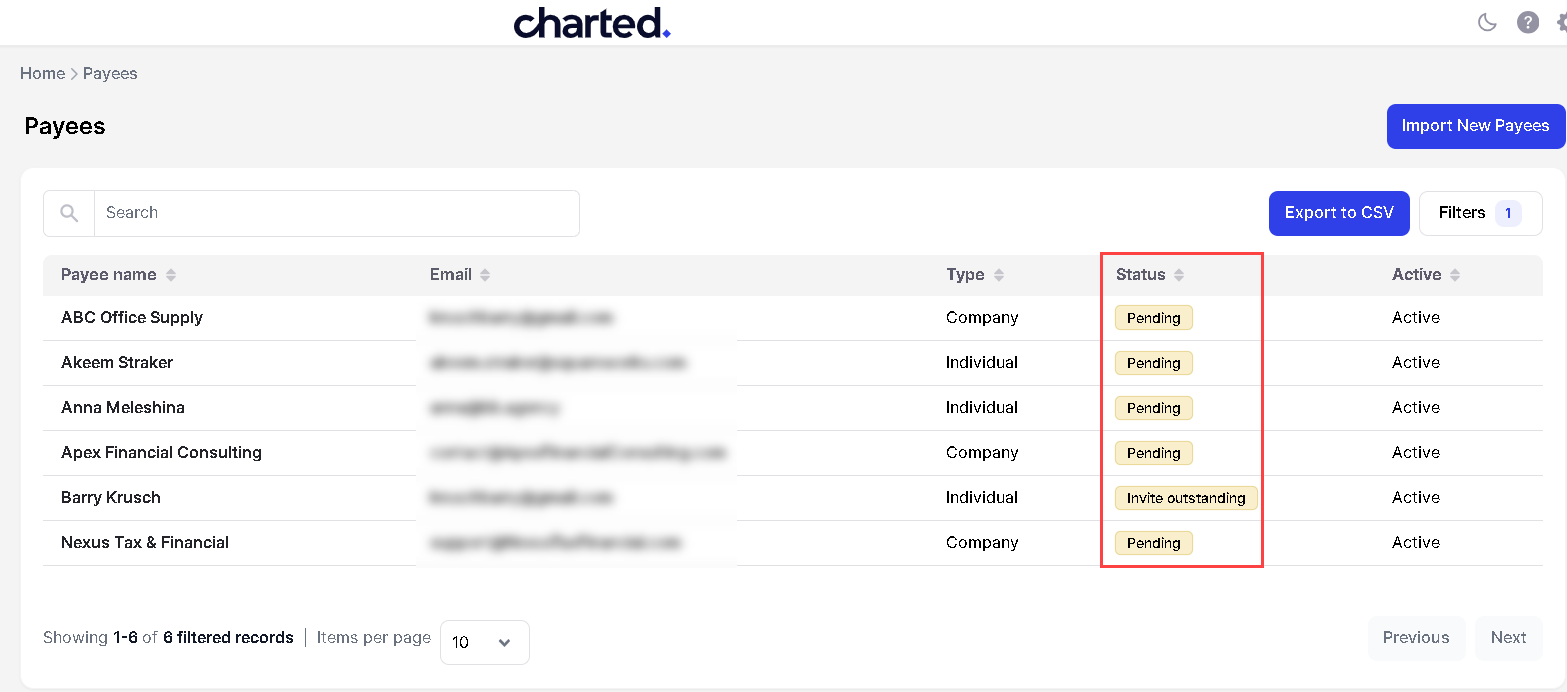
3. The invitation will be reflected in the **STATUS** column:
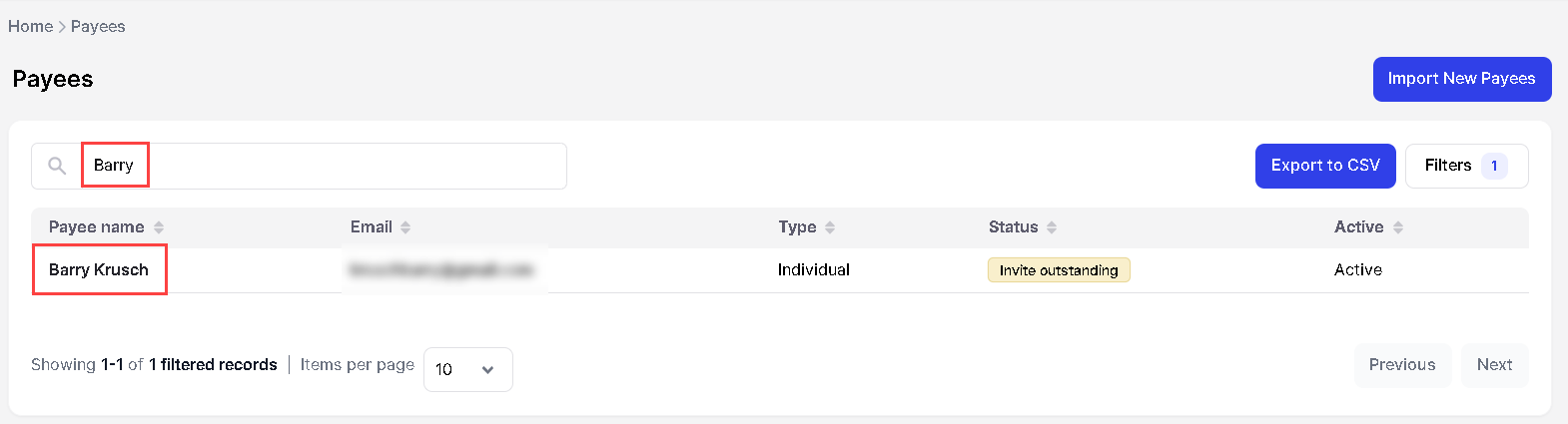
4. To check a payee's current status, enter the payee’s name in the search bar and click on it to view the record:\
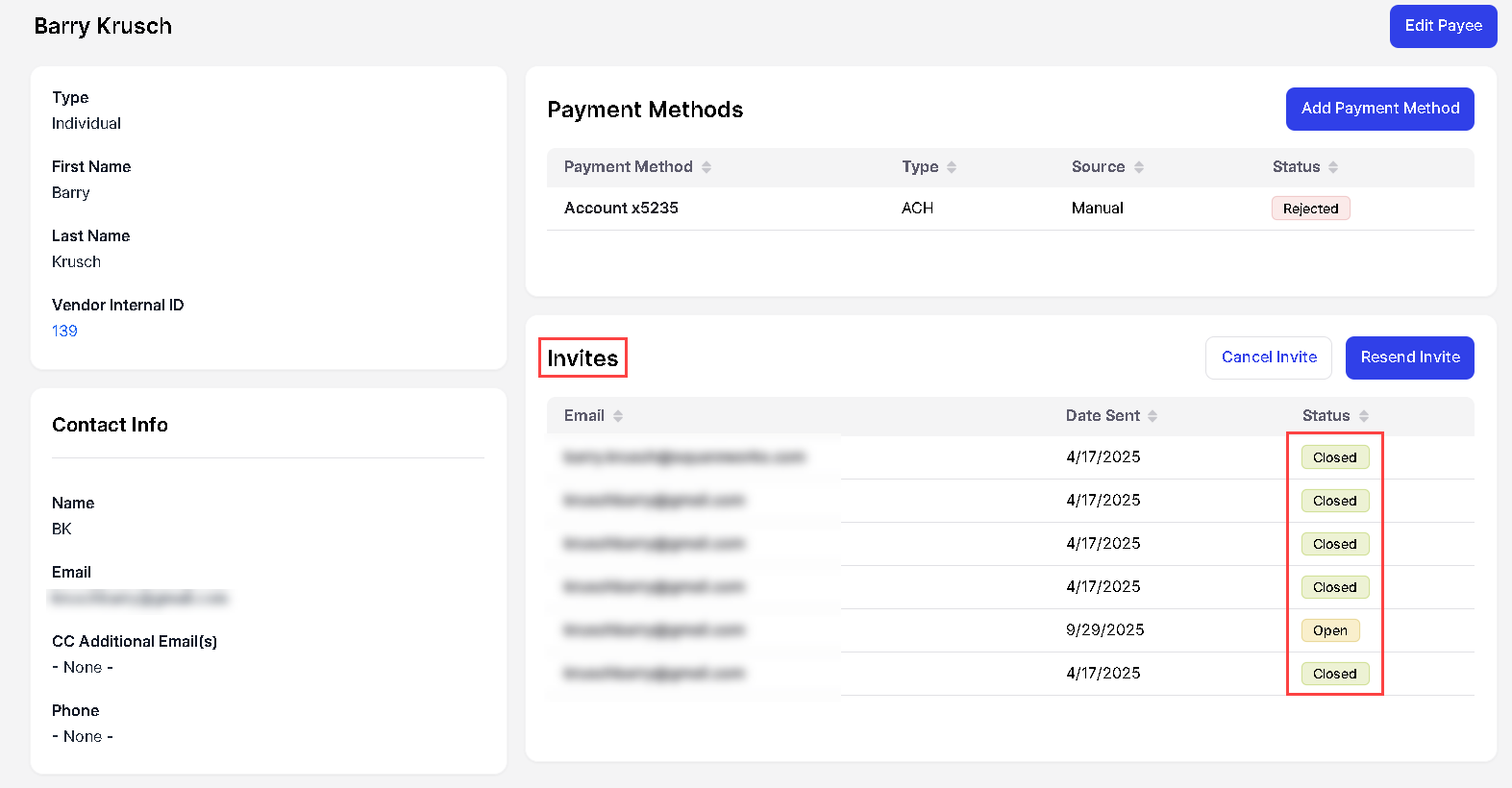
5. Once the record is opened, you will see all invites in the **Invites** section as they've been set up. In the **STATUS** column, **Closed** means it was completed, and **Open** means it's still waiting for the customer or the vendor to respond:\
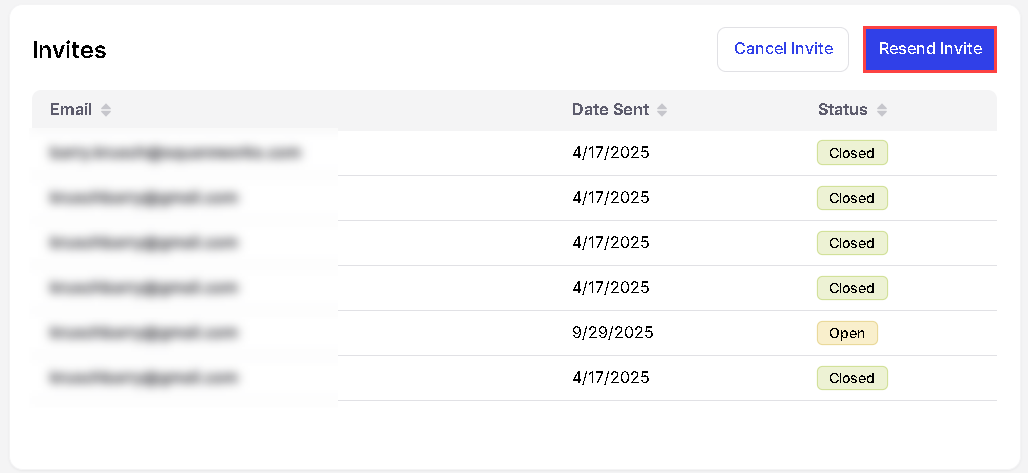
6. **You can resend an invite** by clicking the **Resend Invite** button to remind the payee to fill out the invitation:\
7. You can also cancel an outstanding invite by clicking the **Cancel Invite** button:\
8. Once a payee completes an invitation, the status will reflect **Closed.** If a new payment method was requested by the payee, the new [payment method will need to be approved](/ap-automation/~/revisions/5mWfap1wj08VLBd4NLdS/charted-features/payment-automation/approving-payment-methods.md):\
This concludes the overview of **Managing Payee Invitations** in **Charted**.
---
# Agent Instructions
This documentation is published with GitBook. GitBook is the documentation platform designed so that both humans and AI agents can read, navigate, and reason over technical content effectively. Learn more at gitbook.com.
## Querying This Documentation
If you need additional information that is not directly available in this page, you can query the documentation by asking a question.
Perform an HTTP GET request on the following URL with the `ask` and `goal` query parameters:
```
GET https://docs.charted.com/ap-automation/~/revisions/5mWfap1wj08VLBd4NLdS/charted-features/payment-automation/managing-payee-invitations.md?ask=&goal=
```
`ask` is the immediate question: it should be specific, self-contained, and written in natural language.
`goal` is what the user is ultimately trying to achieve, the reason they need the answer. Sharing it helps GitBook give you a better, more relevant answer. A goal is most helpful when it describes the outcome the user wants rather than restating the question. For example, with `ask=how do I create an API token`, a goal like `automate deployments from our CI pipeline` lets GitBook tailor the answer to that use case.
The response will contain a direct answer to the question and relevant excerpts and sources from the documentation.
Use this mechanism when the answer is not explicitly present in the current page, you need clarification or additional context, or you want to retrieve related documentation sections.