> For the complete documentation index, see [llms.txt](https://docs.charted.com/ap-automation/llms.txt). Markdown versions of documentation pages are available by appending `.md` to page URLs; this page is available as [Markdown](https://docs.charted.com/ap-automation/charted-features/vendor-request.md).
# Vendor Request
{% hint style="info" %}
This feature is included within Charted's [Charted AP Automation Suite](https://squareworks.com/automate-ap-automation-suite/).
{% endhint %}
### Creating a New Vendor Request
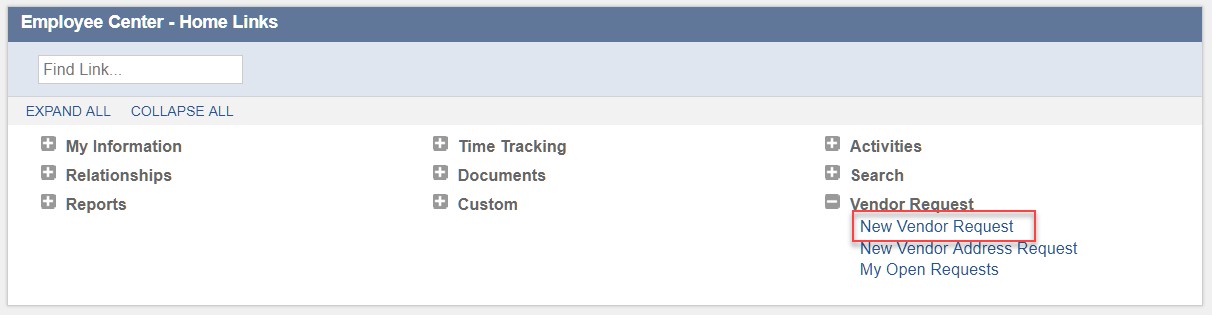
1. If using the Employee Center Role, navigate to the Employee Center – Home Links Dashboard and click on **New Vendor Request**:
2. If using the Administrator Role, navigate to Lists > Vendor Request > New Vendor Request:

3. Fill out the information on the form:

The form can be modified to meet your company’s needs. This includes adding/removing fields or making some fields mandatory. For additional information on how to modify the form, please see the section **Adjusting the Vendor and Vendor Address Request Forms** or contact a Charted representative.
1. After all information has been populated, click **Save**
2. Once the Vendor Request is created, please note that the record is created with a status of “Not Submitted”. This allows users to review the request prior to submitting it for approval:

3. Click the Submit for Approval button. This will change the status from “Not Submitted” to “Pending Approval”:

At this point, the request is sitting in the Approval Queue. For additional information on how to Manage and Approve requests that are Pending Approval, please see the section **Managing and Approving Vendor or Vendor Address Requests**.
If you find an error with the request, you can click on “Cancel Approval Request” and this will bring the record back to “Not Submitted”. At that point, you can make any necessary changes and re- submit for approval.
### Creating a New Vendor Address Request
1. If using the Employee Center Role, navigate to the Employee Center – Home Links Dashboard and click on **New Vendor Address Request**:

2. If using the Administrator Role, navigate to Lists > Vendor Request > New Vendor Address Request:\
\

3. For additional navigation information related to other roles, please contact a Charted representative.
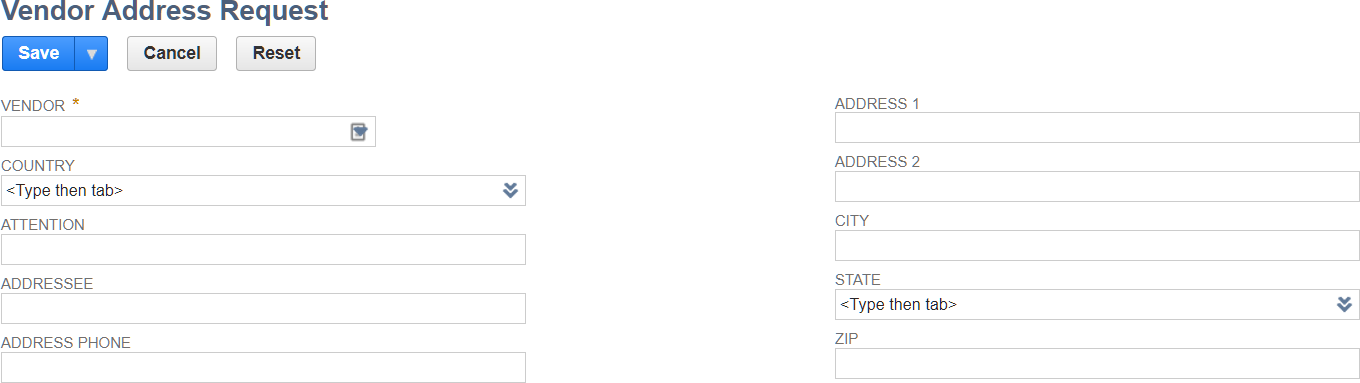
4. Fill out the information on the form:
The form can be modified to meet your company’s needs. This includes adding/removing fields or making some fields mandatory. For additional information on how to modify the form, please see the section **Adjusting the Vendor and Vendor Address Request Forms** or contact a Charted representative.
1. After all information has been populated, click **Save**
2. Once the Vendor Address Request is created, please note that the record is created with a status of “Not Submitted”. This allows users to review the request prior to submitting it for approval:

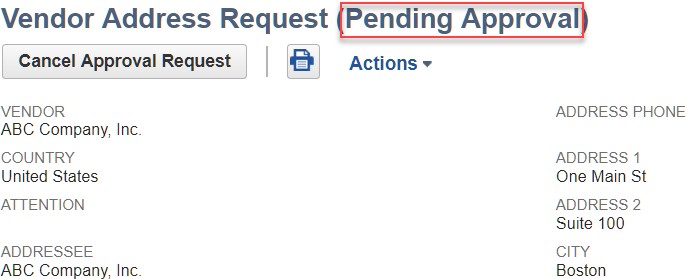
3. Once all the details have bene reviewed, click on “Submit for Approval”. The status will change to “Pending Approval”:
At this point, the request is sitting in the Approval Queue. For additional information on how to Manage and Approve requests that are Pending Approval, please see the section ***“Managing and Approving Vendor or Vendor Address Requests”***.
If you find an error with the request, you can click on “Cancel Approval Request” and this will bring the record back to “Not Submitted”. At that point, you can make any necessary changes and re- submit for approval.
### Viewing Open Vendor or Vendor Address Requests
1. If using the Employee Center Role, navigate to the Employee Center – Home Links Dashboard and click on **My Open Requests**:

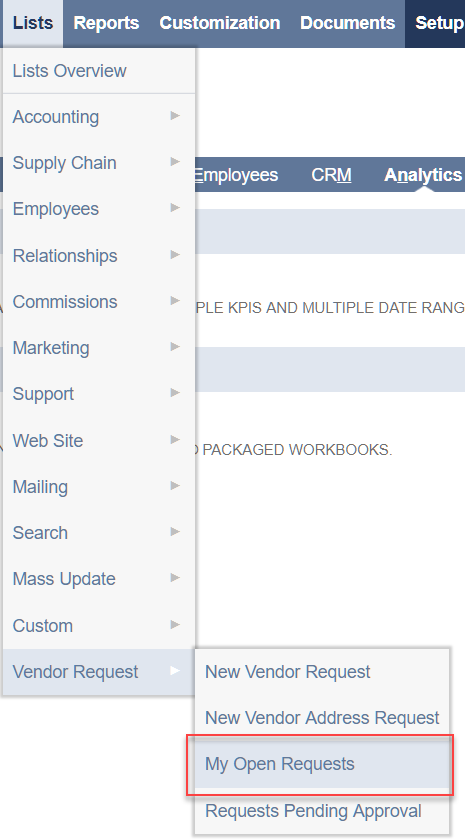
2. If using the Administrator Role, navigate to Lists > Vendor Request > My Open Requests:
3. A list of all “Pending Approval”, “Rejected” or “Not Submitted” requests will be shown in this page. This allows users to always know where Open Requests stand:
4. Users can click on the “Request ID” and open the Vendor Request or Vendor Address Request Forms. Once in the page, users can Cancel Approval Requests, or review Rejected Approval Requests and Re-Submit with any corrections requested by the reviewer of the request.
### Managing and Approving Vendor or Vendor Address Requests
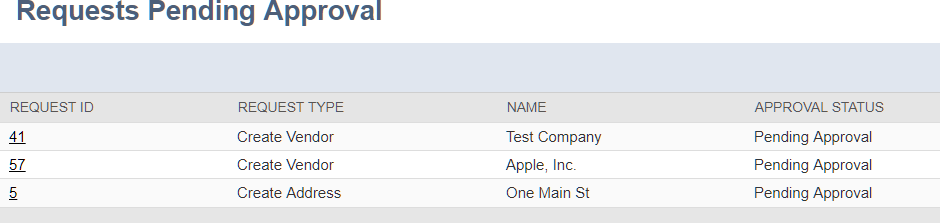
Users who have the permission to create new Vendors in NetSuite, will automatically be able to see an option called “Requests Pending Approval”, which allows users to have a queue of Vendor Requests for review and approval.
1. To view all “Requests Pending Approval”, navigate to Lists > Vendor Request > Requests Pending Approval:

2. From the list of Requests, select the one you’d like to review:
3. Review all Vendor or Vendor Address Details. If everything looks correct, you can approve by clicking the **Approve** button:

When approving a Vendor Request, this will automatically create a new Vendor Record in NetSuite (or a new Address for the specified Vendor Record if it is a Vendor Address Request). An Email will be sent to the person who requested the vendor with a confirmation that the Vendor has been created in NetSuite.
4. If there are any fields missing or you wish to reject a request for any reason, you can click on **Reject**:

When rejecting a Vendor Request, NetSuite will ask for a Rejection Reason. Once provided, the Request will be updated to a “Rejected” status and an Email will be sent to the person who requested the Vendor with the reason why this was rejected.
### Adding Custom Mappings
1. Navigate to Setup > Company > General Preferences

2. Within the Custom Preferences tab, locate the fields Custom Vendor Request Mappings and Custom Vendor Address Request Mappings:

3. Identify the field IDs on the Vendor Request/Address record type and the Vendor record type.
4. Add a new line to the Custom Vendor Request Mappings or to the Custom Vendor Address Request Mappings Fields using the format below:\
\
*\,\*\
\
For example, if you want to map the field on the Vendor Request Form customrecord\_sw\_vr\_addr1 to the field addr1 on the Vendor Record, then you would enter a new line as follows:\
\
!\[Text
Description automatically generated]\(/files/u38UZvg4Ag7SUccqIjxD)
5. Once you’ve verified that all fields have been properly mapped and all ID’s are correct, click **Save** and the bundle will use the mapping configured in this field to ensure that all fields are copied over from the Vendor Request or Vendor Address Request Forms to the Vendor Record in NetSuite.
### Adjusting the Vendor and Vendor Address Request Forms
\
*Important*: Never edit the **custom forms** that come out of the box with the Charted Vendor Request Bundle. If you need to make modifications, make a copy of the existing form and use the newly saved form to make your changes.
Don’t edit any of the **custom record fields**. If you need changes, ensure you create a new field, give it a new name/ID, expose it to your custom form and then define a mapping using the Bundle’s Configuration options (See **Adding Custom Mappings** section).
1. Navigate to Customization > Lists, Records, & Fields > Record Types\
\
!\[Graphical user interface, application
Description automatically generated]\(/files/qtvaX3hOx82jTyEAvIvu)
2. Locate and click on the record that you’d like to modify (either the Vendor Request or the Vendor Address Request Record)
3. Go to the **Forms** tab and click on **Edit** next to the “Charted…” Form listed:
4. Make any necessary adjustments to the Form. For additional information on how to modify Forms, create or edit Fields or any other changes, please contact a Charted representative.
5. Once you are done with your changes, make sure you update the name of the Form (to avoid replacing the out of the box Custom Form) and click **Save As**.
---
# Agent Instructions
This documentation is published with GitBook. GitBook is the documentation platform designed so that both humans and AI agents can read, navigate, and reason over technical content effectively. Learn more at gitbook.com.
## Querying This Documentation
If you need additional information that is not directly available in this page, you can query the documentation dynamically by asking a question.
Perform an HTTP GET request on the current page URL with the `ask` query parameter, and the optional `goal` query parameter:
```
GET https://docs.charted.com/ap-automation/charted-features/vendor-request.md?ask=&goal=
```
`ask` is the immediate question: it should be specific, self-contained, and written in natural language.
`goal` is optional and describes the broader end goal you are ultimately trying to accomplish on behalf of the user. GitBook uses it to tailor the answer towards what is most useful for that goal.
The response will contain a direct answer to the question and relevant excerpts and sources from the documentation.
Use this mechanism when the answer is not explicitly present in the current page, you need clarification or additional context, or you want to retrieve related documentation sections.