> For the complete documentation index, see [llms.txt](https://docs.charted.com/ap-automation/llms.txt). Markdown versions of documentation pages are available by appending `.md` to page URLs; this page is available as [Markdown](https://docs.charted.com/ap-automation/charted-configuration/setting-up-charted/verify-password-policy-and-setup.md).
# Verify Password Policy & Setup
### Abstract
Verifying and enforcing a strong password policy is an essential step for administrators configuring **Charted** in *NetSuite*. This process ensures that user credentials meet the minimum standards for security and protects your organization’s data. An example use case for this configuration is when an administrator needs to enable advanced *SuiteApp* features that require elevated password complexity, helping reduce unauthorized access and maintain compliance with internal IT policies.
This article provides a detailed guide on verifying your organization’s *NetSuite* password policy and ensuring it meets the required security standards for **Charted**. It begins with an overview of why this policy is necessary, continues with specific instructions on how to configure the password policy and minimum password length settings, and concludes by confirming that you have met all prerequisites for advanced feature enablement.
### Verifying NetSuite Password Policy
Having a strong password policy is a prerequisite for many **Charted** functionalities. *NetSuite* will generate warnings if you attempt to enable certain features without this policy in place. By following the steps below, you can confirm your password policy is set correctly and avoid unnecessary hurdles when rolling out new features.
1. If you want to ensure your *NetSuite* environment meets **Charted** requirements, open the **Setup** menu in *NetSuite*, select **Company**, and then choose **General Preferences:**\
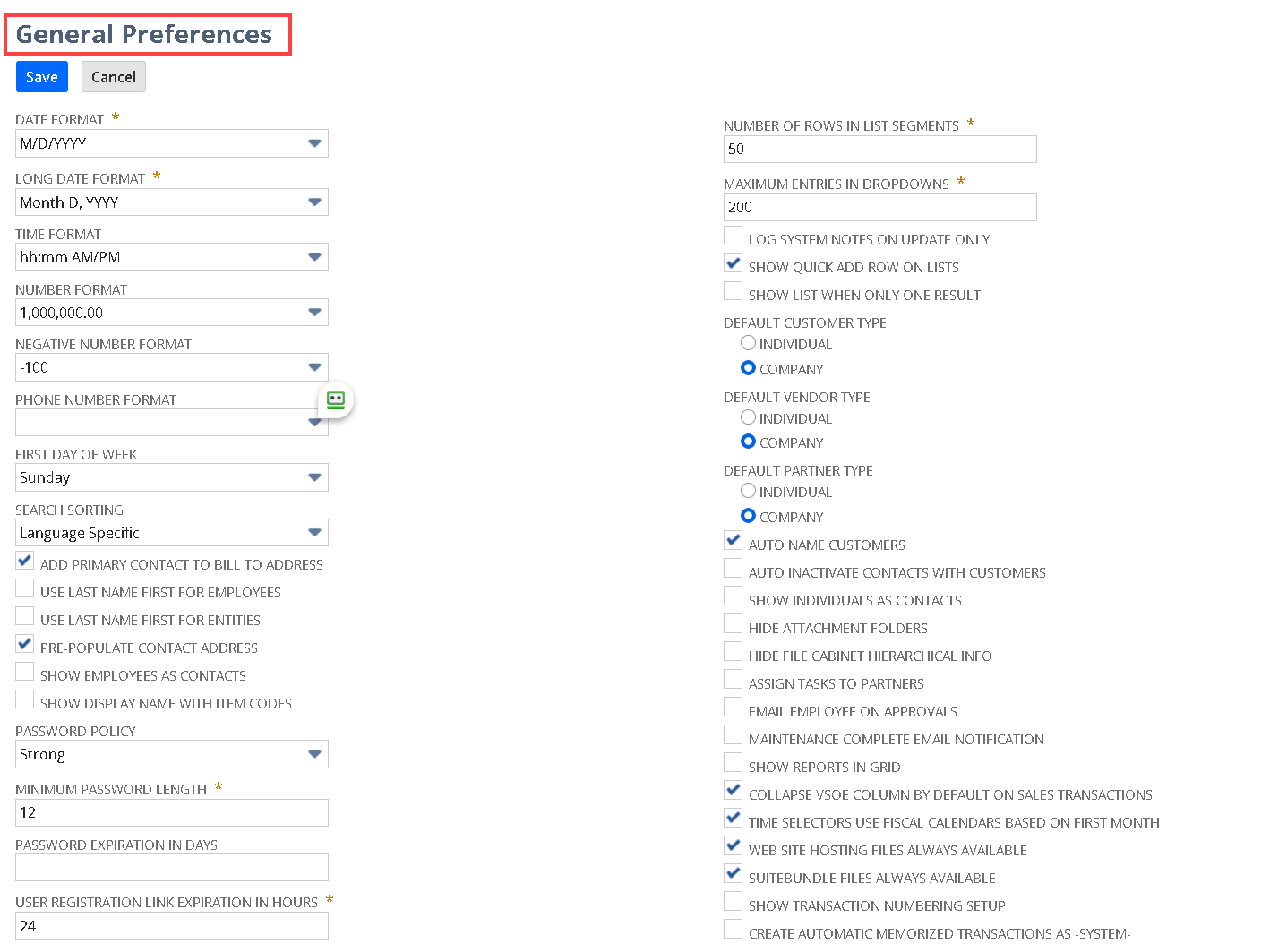
2. Once you see the **General Preferences** page, scroll down to locate the **Password Policy** field:\
\
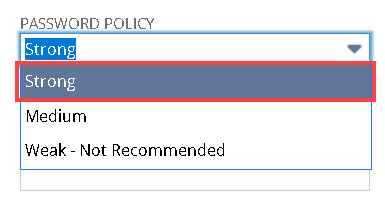
3. Because **Charted** requires strong credentials, select **Strong** from the drop-down menu, and confirm there are no other policy options set that weaken password security:
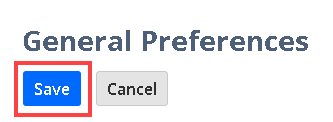
4. Finally, to save your changes, click **Save** at the bottom of the **General Preferences** page:
### Ensuring Minimum Password Length
A properly configured minimum password length is a key part of maintaining strong security standards. *NetSuite* typically defaults to a secure length, but you should always confirm it meets or exceeds the **Charted** requirement.
1. If you need to meet **Charted’s** length requirement, stay on or return to the **General Preferences** page in *NetSuite*:
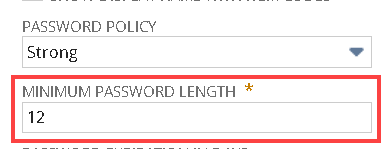
2. To specify the correct length, find the **Minimum Password Length** field beneath the **Password Policy** option:
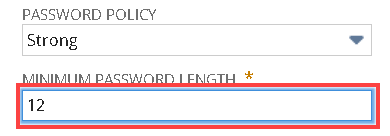
3. Once you locate the **Minimum Password Length** field, verify that it’s set to at least 12 characters (it can be more than 12 if desired):
Note: Because some organizations prefer tighter security, consider increasing the limit if it aligns with your IT policy; however, do not go below 12 characters.
4. When you are done setting the length, click the **Save** button to confirm your updated configuration:
By completing these steps, you have validated and configured your *NetSuite* password policy to meet **Charted*****’s*** requirements.
---
# Agent Instructions
This documentation is published with GitBook. GitBook is the documentation platform designed so that both humans and AI agents can read, navigate, and reason over technical content effectively. Learn more at gitbook.com.
## Querying This Documentation
If you need additional information that is not directly available in this page, you can query the documentation dynamically by asking a question.
Perform an HTTP GET request on the current page URL with the `ask` query parameter, and the optional `goal` query parameter:
```
GET https://docs.charted.com/ap-automation/charted-configuration/setting-up-charted/verify-password-policy-and-setup.md?ask=&goal=
```
`ask` is the immediate question: it should be specific, self-contained, and written in natural language.
`goal` is optional and describes the broader end goal you are ultimately trying to accomplish on behalf of the user. GitBook uses it to tailor the answer towards what is most useful for that goal.
The response will contain a direct answer to the question and relevant excerpts and sources from the documentation.
Use this mechanism when the answer is not explicitly present in the current page, you need clarification or additional context, or you want to retrieve related documentation sections.