> For the complete documentation index, see [llms.txt](https://docs.charted.com/ap-automation/llms.txt). Markdown versions of documentation pages are available by appending `.md` to page URLs; this page is available as [Markdown](https://docs.charted.com/ap-automation/charted-configuration/real-time-3-way-match/override-settings.md).
# Override Settings
### Abstract
*Real-Time 3-Way Match Override Settings* allow administrators to create exceptions to the default invoice-matching logic in *NetSuite*. These settings are especially useful when specific vendors, subsidiaries, or item types require tolerances or rules different from those in the global configuration. For example, while most vendors may follow a strict 0% threshold, a management services vendor under a special contract may be allowed a 10% threshold variance on total invoice amounts. *Override Settings* provide the flexibility to tailor invoice matching to contractual or operational nuances without affecting the broader system rules.
This article explains how to configure *Override Settings* within the *Real-Time 3-Way Match* module of *NetSuite*.
### Creating a New Override Setting
**Override Settings** are used when specific business units or vendors operate under terms that differ from your organization's default **3-Way Match** rules. For example, some vendors may have negotiated threshold allowances that necessitate custom handling.
Follow these steps to configure **Override Settings** within the **Real-Time 3-Way Match:**
1. To locate the **Override Settings**, hover over the **Setup** menu, then **3-Way Match**, and select the **Settings** option:\
\
\
It will open the screen to the **3WM Settings** page, where you can see the **Override Settings** section:\
2. To initiate the override configuration process, click the **New 3WM Settings** button from the settings screen, which will open the new **3WM Settings** page:\
3. When setting up this override, use the form to define the combination of values that require different behavior — this might include a specific **Subsidiary**, **Vendor**, or **Item**:\
4. To apply different matching behavior for a specific business unit, click the **Subsidiary** dropdown and select the appropriate subsidiary (eg, **Charted Consulting LLC**) from the list:\
5. Then, to define a custom threshold for a particular supplier, use the **Vendor** dropdown to choose the vendor that should follow alternate matching logic, such as **NorthStar Management Group**:\
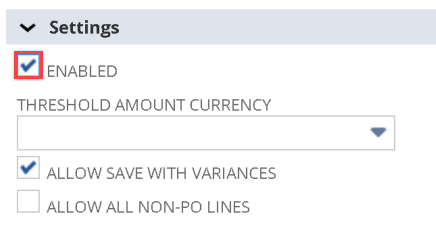
6. After selecting the fields that you want to override, scroll to the **Settings** section. To activate the override, check the **Enabled** box. This ensures that the override configuration is recognized and applied by the system:\
7. When the override is based on **Total Thresholds**, enter a **10%** value to allow matching within that range, especially when it differs from your standard configuration:\
### Understanding Dynamic Behavior Based on Selected Fields
When configuring an override using certain field combinations, such as **Vendor** and **Item,** *NetSuite* dynamically adjusts the available options on screen. This ensures that only context-appropriate settings are displayed.
1. To see this dynamic behavior in action, set an override for both a **Vendor** and an **Item**, such as an item used for **Consulting Services**:\
\
\
Note: When an item is selected from the **ITEM** dropdown, the system automatically adjusts available fields based on your selections. As you can see, the **Total Threshold** field is removed from the **3WM Settings** page:\
\
\
This concludes the process of setting up and managing **Real-Time 3-Way Match Override Settings** in *NetSuite*.
---
# Agent Instructions
This documentation is published with GitBook. GitBook is the documentation platform designed so that both humans and AI agents can read, navigate, and reason over technical content effectively. Learn more at gitbook.com.
## Querying This Documentation
If you need additional information that is not directly available in this page, you can query the documentation by asking a question.
Perform an HTTP GET request on the following URL with the `ask` and `goal` query parameters:
```
GET https://docs.charted.com/ap-automation/charted-configuration/real-time-3-way-match/override-settings.md?ask=&goal=
```
`ask` is the immediate question: it should be specific, self-contained, and written in natural language.
`goal` is what the user is ultimately trying to achieve, the reason they need the answer. Sharing it helps GitBook give you a better, more relevant answer. A goal is most helpful when it describes the outcome the user wants rather than restating the question. For example, with `ask=how do I create an API token`, a goal like `automate deployments from our CI pipeline` lets GitBook tailor the answer to that use case.
The response will contain a direct answer to the question and relevant excerpts and sources from the documentation.
Use this mechanism when the answer is not explicitly present in the current page, you need clarification or additional context, or you want to retrieve related documentation sections.