> For the complete documentation index, see [llms.txt](https://docs.charted.com/ap-automation/llms.txt). Markdown versions of documentation pages are available by appending `.md` to page URLs; this page is available as [Markdown](https://docs.charted.com/ap-automation/charted-configuration/real-time-3-way-match/enabling-3-way-match-and-defining-thresholds.md).
# Enabling 3-Way Match and Defining Thresholds
### Abstract
*Three-Way Match (3WM)* is a powerful control feature in *NetSuite* used to ensure that what was ordered, received, and billed aligns before payment is issued. This matching process helps prevent over billing, catch discrepancies, and enforce purchasing accuracy. Depending on an organization’s policy, *3WM* can be enforced either at a detailed line level or as an overall comparison. For example, a company with tight inventory and vendor billing controls may choose strict line-level matching with small tolerance thresholds.
This article explains how to enable the *3-Way Match* feature and configure matching thresholds in *NetSuite*.
### **Enable 3-Way Match and Define Thresholds**
Enabling and defining *3-Way Match* thresholds ensures that purchase orders, receipts, and bills are accurately aligned before payment is processed. It helps organizations control variances by setting clear limits at the line or total level.
Follow these steps to enable and configure *3-Way Match* in *NetSuite*:
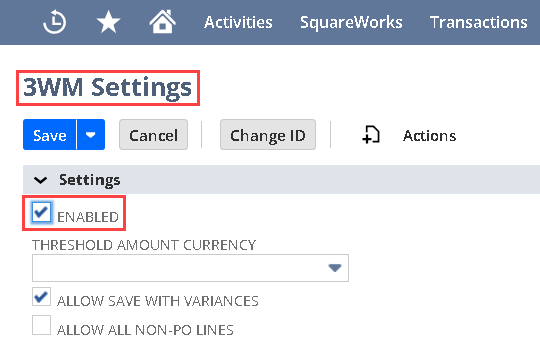
1. Once you are on the **3WM Settings** page, begin by checking the **ENABLED** box. This turns on the **3-Way Match** feature for your account:\
2. After enabling the feature, scroll to the bottom of the page where the most common configuration options are located — specifically, the line-level and total thresholds:\
\
\
Each organization may require a different combination of line-level and total matching, depending on internal policies and controls.
3. In general, organizations that apply stricter **Three-Way Match** enforcement are more likely to use line-level comparisons:\
4. Conversely, companies with less strict requirements — often using purchase orders just to track contractual obligations use the **Total Thresholds**:\
\
\
Your configuration should reflect how your organization compares vendor bills against purchase orders, either line by line or using the overall total.
5. In the **Line Quantity Threshold** section, you can define either a **PERCENT THRESHOLD** and/or an **AMOUNT THRESHOLD**. For example, you can allow items to pass as long as the quantity is within **5.0%**, and specify **AMOUNT THRESHOLD** must be within **1** unit:\
\
\
To illustrate, if a purchase order lists a quantity of **100** and a bill or item receipt shows **101**, it will pass if your threshold is set to **1**. However, if it shows **102**, it will not be accepted.
6. This same logic also applies to the **Line Rate Threshold** and **Line Amount Threshold**, which allow you to define variance limits for rates and amounts, respectively:\
7. To track exceptions more closely, you can check the **REPORT VARIANCE IF EITHER THRESHOLD EXCEEDED** box. This enables variance reporting when either the percentage or amount threshold is exceeded:\
\
\
This can be especially useful for large POs. For instance, you may be fine with a **5%** variance but want to cap it at a maximum of **$1,000**. That way, even if **5%** is acceptable in general, the system will report any overages beyond that cap.
8. The same approach applies to the **Total Threshold**, which is ideal if you prefer not to compare each individual line. Instead, you can match based on the total value of the purchase order:\
\
\
This concludes the process of enabling a **3-Way Match** and defining thresholds in *NetSuite*.
---
# Agent Instructions
This documentation is published with GitBook. GitBook is the documentation platform designed so that both humans and AI agents can read, navigate, and reason over technical content effectively. Learn more at gitbook.com.
## Querying This Documentation
If you need additional information that is not directly available in this page, you can query the documentation by asking a question.
Perform an HTTP GET request on the following URL with the `ask` and `goal` query parameters:
```
GET https://docs.charted.com/ap-automation/charted-configuration/real-time-3-way-match/enabling-3-way-match-and-defining-thresholds.md?ask=&goal=
```
`ask` is the immediate question: it should be specific, self-contained, and written in natural language.
`goal` is what the user is ultimately trying to achieve, the reason they need the answer. Sharing it helps GitBook give you a better, more relevant answer. A goal is most helpful when it describes the outcome the user wants rather than restating the question. For example, with `ask=how do I create an API token`, a goal like `automate deployments from our CI pipeline` lets GitBook tailor the answer to that use case.
The response will contain a direct answer to the question and relevant excerpts and sources from the documentation.
Use this mechanism when the answer is not explicitly present in the current page, you need clarification or additional context, or you want to retrieve related documentation sections.