> For the complete documentation index, see [llms.txt](https://docs.charted.com/ap-automation/llms.txt). Markdown versions of documentation pages are available by appending `.md` to page URLs; this page is available as [Markdown](https://docs.charted.com/ap-automation/charted-configuration/payment-automation/advanced-settings-and-remittance-options.md).
# Advanced Settings and Remittance Options
### Abstract
Administrators often need to fine-tune payment automation settings to handle unique remittance requirements and specialized payment workflows. By configuring advanced settings, they can customize key aspects of their remittance process — such as defining specific columns in remittance files or automatically attaching CSV documents to emails — to ensure compliance, transparency, and scalability. For example, an organization that needs to share invoice references, dates, and amounts with its vendors in a custom format can easily do so by enabling these advanced options.
This article focuses on configuring *Advanced Payment Settings* and *Remittance Options*. It provides guidance on accessing and customizing remittance columns, as well as enabling CSV remittances for email distribution.
### Advanced Payment Settings
*Advanced Payment Settings* empower administrators to fine-tune how payment automation behaves behind the scenes. This allows you to control specialized options — such as the types of columns shown on remittance reports — ensuring your organization’s unique invoicing and payment needs are met.
1. To get to Advanced Payment Settings, Navigate to **Charted** > **AP Automation** **> Settings > Payment Automation > Settings**
2. If you're using an in-house check printing solution, we recommend you turn on **Exclude To Be Printed Bill Payments from Charted** so that all **Bill Payments** with '**To Be Printed**' checked will not flow to **Charted.**
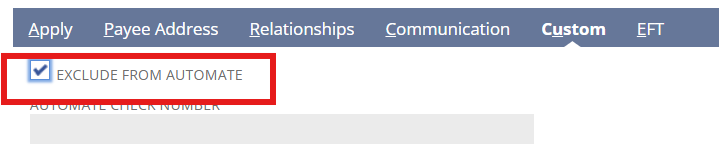
3. If you'd like to handle payments outside of **Charted**, we recommend you turn on '**Add Exclude from Charted Option**'. When enabled, a new checkbox will be added to **Vendor Bill Payments** > **Custom** tab:
### Remittance Options
*Remittance Options* allow administrators to include specific payment details on the remittance advice sent to vendors. Customizing these details — from vendor name and invoice number to date and amount — ensures vendors receive all the relevant information in one place. Additionally, enabling automated CSV attachments helps streamline communication and reduces the risk of missing payment data.
1. You configure your custom remittance columns by toggling **ON** the **Enable Custom Remittance Columns**:

2. To define which columns should appear, select the dropdown to show the listed options (e.g., Date, Description, Amount, Memo, etc.) within the **Custom Remittance Columns** under **Field.**
3. If you need to attach a CSV remittance file automatically to vendor emails, locate the **Always Attach CSV Remittance to Email** toggle and switch it **ON**:
4. After you’ve enabled the preferred features on the **Advanced Settings**, click the **Save** button to complete your configuration:
### Remittance Email Business Logo
You may optionally upload a logo of your business entity that will be displayed at the top of every payment remittance email that is sent to the vendor.
To upload a business logo:
1\) Go to **Charted > AP Automation > Settings > Business Entities**
2\) Click on the business entity sending the invite and press **Edit**
3\) Choose file for **Logo**. PNG, GIF, and JPEG are supported, file size must be less than 1MB.
4\) Press **Submit** to finalize the logo
Now all vendors who receive a remittance email will see your business logo at the top of all remittance emails.
---
# Agent Instructions
This documentation is published with GitBook. GitBook is the documentation platform designed so that both humans and AI agents can read, navigate, and reason over technical content effectively. Learn more at gitbook.com.
## Querying This Documentation
If you need additional information that is not directly available in this page, you can query the documentation dynamically by asking a question.
Perform an HTTP GET request on the current page URL with the `ask` query parameter, and the optional `goal` query parameter:
```
GET https://docs.charted.com/ap-automation/charted-configuration/payment-automation/advanced-settings-and-remittance-options.md?ask=&goal=
```
`ask` is the immediate question: it should be specific, self-contained, and written in natural language.
`goal` is optional and describes the broader end goal you are ultimately trying to accomplish on behalf of the user. GitBook uses it to tailor the answer towards what is most useful for that goal.
The response will contain a direct answer to the question and relevant excerpts and sources from the documentation.
Use this mechanism when the answer is not explicitly present in the current page, you need clarification or additional context, or you want to retrieve related documentation sections.