> For the complete documentation index, see [llms.txt](https://docs.charted.com/ap-automation/llms.txt). Markdown versions of documentation pages are available by appending `.md` to page URLs; this page is available as [Markdown](https://docs.charted.com/ap-automation/charted-configuration/on-premise-check-printing/troubleshooting-data-pulls-hidden-fields-voids-and-batch-errors.md).
# Troubleshooting Data Pulls, Hidden Fields, Voids & Batch Errors
### **Abstract**
Administrators can troubleshoot issues in Advanced Check Printing by reviewing pulled data, validating custom fields, handling voids, and resolving batch errors. The CPB Check Print Job page offers tools to isolate and correct problems without reprinting full batches. Reviewing data in advance can prevent check output issues and reduce support escalations.
This guide explains how to review check data, verify custom fields, and resolve errors using *NetSuite’s* built-in tools, including when to void and reprocess checks.
### Troubleshooting Check Data, Custom Fields, Voids, and Batch Errors
Administrators can validate whether custom fields were successfully pulled for a check, avoid printing errors by inspecting data in advance, and isolate problems in a batch without affecting other checks.
Follow these steps to review data pulls, resolve missing values, and manage voids:
1. Once you are on the **CPB Check Print Job** page, scroll down and click the **Custom** tab. This tab shows the data used to generate each check in the batch:
\
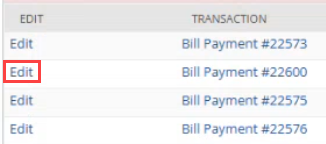
2. If you click the **Bill Payment** link under the **TRANSACTION** column, you’ll be taken directly to the associated bill payment record in **NetSuite**:\
3. Next, click the **Edit** button to inspect the data that was pulled into the check.
\
\
This is especially useful when testing or troubleshooting support tickets where the customer reports missing data on the check. This step helps verify whether the necessary data was actually pulled at the time of printing.\
4. On the **CPB Check Print Job Data** page, use the **CHECK DATA** field to confirm whether values from custom fields were successfully pulled:
\
\
If a custom field was configured and referenced in the template, you can use this field to verify that the data was included.\
5. When testing custom fields, the **CHECK DATA** field helps validate that specific values — such as vendor names or entity types — were pulled correctly without needing to print a check each time:\
If you need to remove a check from a batch, use the native **NetSuite** void process. This is the recommended method when a single check is printed with the wrong amount or contains incorrect information. Voiding a check this way does not impact the rest of the checks in the batch.\
6. Suppose you encounter an error while printing checks; inspect the **CHECK DATA** field for that record. If the field is blank, it often indicates a data pull issue. In these cases, you may need to delete the record from the batch and reprocess it.
This concludes the overview of troubleshooting data pulls, hidden fields, voids & batch errors.
---
# Agent Instructions
This documentation is published with GitBook. GitBook is the documentation platform designed so that both humans and AI agents can read, navigate, and reason over technical content effectively. Learn more at gitbook.com.
## Querying This Documentation
If you need additional information that is not directly available in this page, you can query the documentation dynamically by asking a question.
Perform an HTTP GET request on the current page URL with the `ask` query parameter, and the optional `goal` query parameter:
```
GET https://docs.charted.com/ap-automation/charted-configuration/on-premise-check-printing/troubleshooting-data-pulls-hidden-fields-voids-and-batch-errors.md?ask=&goal=
```
`ask` is the immediate question: it should be specific, self-contained, and written in natural language.
`goal` is optional and describes the broader end goal you are ultimately trying to accomplish on behalf of the user. GitBook uses it to tailor the answer towards what is most useful for that goal.
The response will contain a direct answer to the question and relevant excerpts and sources from the documentation.
Use this mechanism when the answer is not explicitly present in the current page, you need clarification or additional context, or you want to retrieve related documentation sections.