> For the complete documentation index, see [llms.txt](https://docs.charted.com/ap-automation/llms.txt). Markdown versions of documentation pages are available by appending `.md` to page URLs; this page is available as [Markdown](https://docs.charted.com/ap-automation/charted-configuration/on-premise-check-printing/custom-template-fields-for-non-standard-data.md).
# Custom Template Fields for Non-Standard Data
### Abstract
Custom Template Fields allow administrators to pull in non-standard or custom data from NetSuite records and use it within check templates. These fields are especially useful when predefined fields do not meet the formatting or data display needs for printed checks.
This article explains how to create and configure custom template fields in **Charted** for use in check templates.
### Creating Custom Template Fields for Check Templates
Custom Template Fields allow you to map non-standard NetSuite data for use in printed check templates. These values are configured manually and referenced by field IDs within the template code.
Use the steps below to create a custom template field:
1. To begin, hover over the **Setup** menu, go to **Check Printing**, and click **Custom Template Fields**, which will take you to the **CPB Custom Template Field** **List** page:
2. Next, click the **New CPB Custom Template Field** button to create a new custom field:\
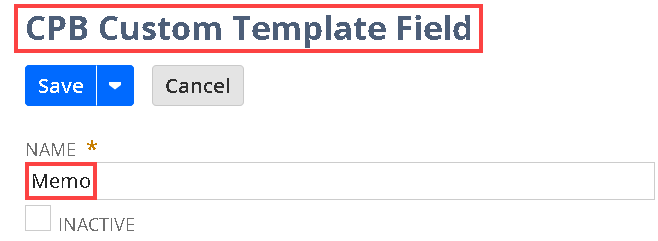
3. On the **CPB Custom Template Field** page, enter a name (e.g., **Memo**) in the **NAME** field:\
4. If you want to deactivate the field, check the **INACTIVE** box:\
\
\
Leave this box blank if the field should remain active and available for use.\
5. From the **RECORD TYPE** dropdown, select the record type the field should pull data from:\
6. In the **SEARCH FIELD ID** field, enter the internal ID of the field you want to reference (e.g., **memo**):\
\
This field supports saved search formulas if you're referencing calculated or custom values.\
7. In the **TEMPLATE FIELD ID** field, enter a unique value to be referenced within your check template:\
\
\
All template field IDs will automatically be prefixed with a custom field.\
8. From the **FIELD DATA TYPE** dropdown, select the appropriate data type (e.g., **TEXT**) that corresponds to the value returned by the search field:\
\
\
This determines how the field is formatted in the check output.\
9. Finally, click the **Save** button to apply your changes:\
\
\
This concludes the overview of creating custom template fields for non-standard data.
---
# Agent Instructions
This documentation is published with GitBook. GitBook is the documentation platform designed so that both humans and AI agents can read, navigate, and reason over technical content effectively. Learn more at gitbook.com.
## Querying This Documentation
If you need additional information that is not directly available in this page, you can query the documentation dynamically by asking a question.
Perform an HTTP GET request on the current page URL with the `ask` query parameter, and the optional `goal` query parameter:
```
GET https://docs.charted.com/ap-automation/charted-configuration/on-premise-check-printing/custom-template-fields-for-non-standard-data.md?ask=&goal=
```
`ask` is the immediate question: it should be specific, self-contained, and written in natural language.
`goal` is optional and describes the broader end goal you are ultimately trying to accomplish on behalf of the user. GitBook uses it to tailor the answer towards what is most useful for that goal.
The response will contain a direct answer to the question and relevant excerpts and sources from the documentation.
Use this mechanism when the answer is not explicitly present in the current page, you need clarification or additional context, or you want to retrieve related documentation sections.