> For the complete documentation index, see [llms.txt](https://docs.charted.com/ap-automation/llms.txt). Markdown versions of documentation pages are available by appending `.md` to page URLs; this page is available as [Markdown](https://docs.charted.com/ap-automation/charted-configuration/invoice-ai/creating-a-new-invoice-ai-rule.md).
# Creating a New Invoice AI Rule
### Abstract
Creating an *Invoice AI* rule in **Charted** lets administrators enforce prescriptive “if-then” logic during invoice processing — such as assigning a static subsidiary or routing invoices to a specific queue owner based on the sender’s email or document text. By automating these decisions, organizations ensure consistent data entry and eliminate repetitive manual tasks, accelerating approvals and reducing errors.
In this article, you’ll learn how to add, save, and edit or deactivate an *Invoice AI* rule.
### Creating a New Invoice AI Rule
This section explains the step-by-step process of defining a new rule on the **Charted OCR Rule List** page.
Follow these steps to configure the invoice AI rule as required:
1. Once you are on the **Charted OCR Rule List** page, click the **New Charted OCR Rule** button to create a new **Invoice AI** rule. Clicking on this button will take you to a new **Charted OCR Rule** page:\
2. Here, the rule relies on prescriptive if-then logic: when the specified condition is met, another action must automatically occur. For instance, if an invoice arrives from a particular email address, you can check the **ASSIGN SUBSIDIARY** box to route it to a designated entity:\
\
This setup is common for organizations that maintain separate AP inboxes for **Subsidiary One** and **Subsidiary Two**, ensuring each invoice posts to the correct subsidiary.
3. Every time we receive an email from one of those different email addresses, instead of trying to determine what the subsidiary is, we do have the logic to do that. You can choose options from the **SUBSIDIARY** dropdown:\
\
\
And if you just want to set it to a static value, that would be an example of forcing a behavior based on that if-then logic, probably the most common use case for a rule.
4. Another use case might be assigning a queue owner**.** So, if an invoice comes from a particular email or the document file contains particular text, it should be assigned to a particular person in the inbox to process, another use case to be used to assign a rule.
5. For example, if the **DOCUMENT FILE NAME CONTAINS** *Michael Johnson*, then the **ASSIGN QUEUE OWNER** dropdown should have *Michael Johnson* selected:\
\
That is another potential use case with very rigid logic — if this applies, then another action must take place.
6. After making these changes, the next step is to name this rule (e.g., *MJ as owner*) in the **RULE NAME** box and click the **Save** button to apply the changes:\
\
You can always go back in and edit this name later if needed.
### Editing or Deactivating a Rule
If you need to change or deactivate an existing rule, follow these steps:
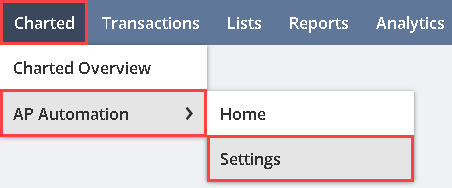
1. To start, hover over the **Charted** menu, then the **AP Automation** tab, and select **Settings**:\
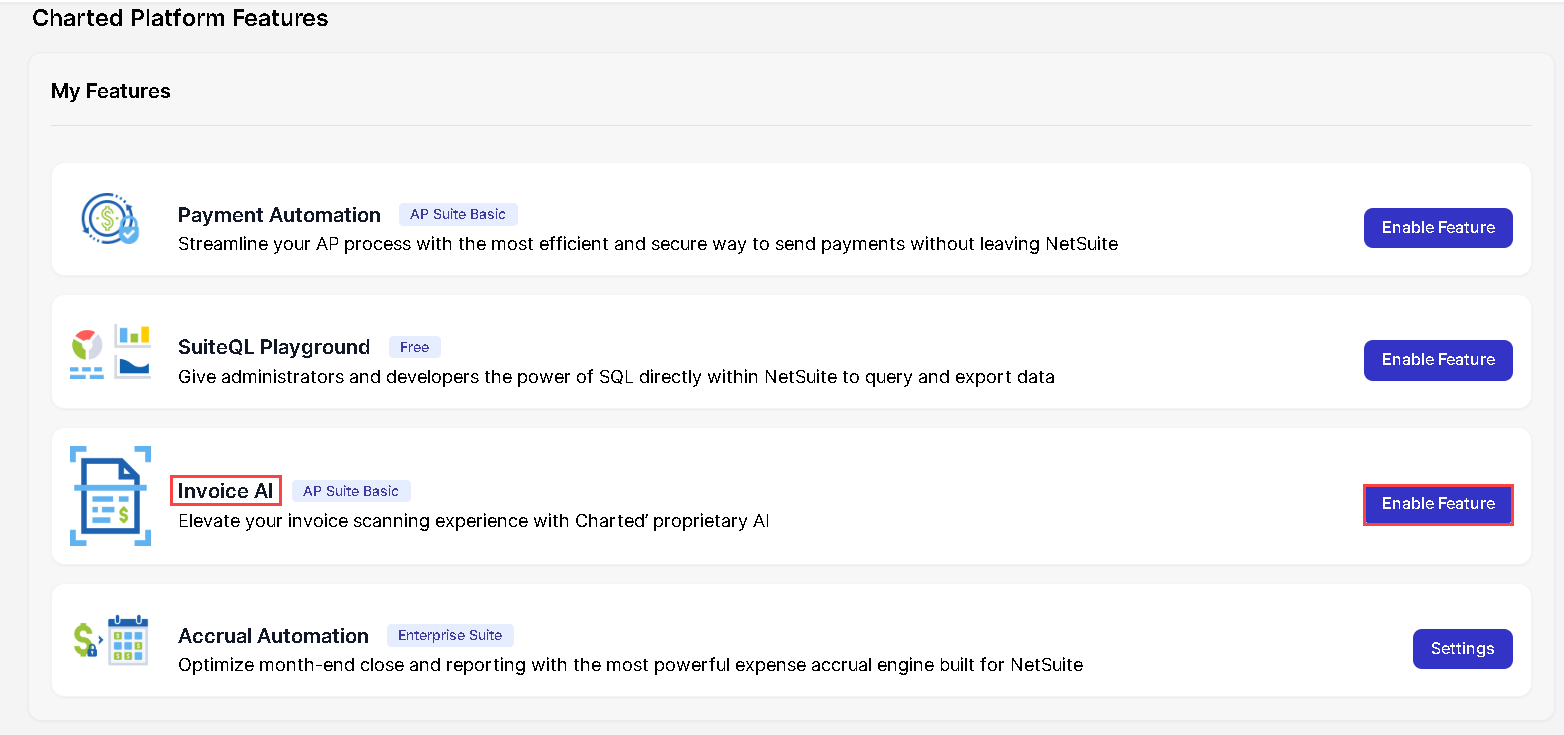
2. Next, click the **Settings** button next to the **Invoice AI** option on the **Charted Platform Features** page:\
3. Then, once on the **Invoice AI Settings** page, click the **Invoice AI Rules** option:\
4. On the **Charted OCR Rule List page**, you will see the rule you just created listed there. To edit this rule, click the **Edit** option:\
5. To make this rule inactive**,** check the **INACTIVE** box and click the **Save** button to apply the changes. The rule will no longer be displayed in the list:\
This concludes the process of creating a new **Invoice AI** rule in **Charted**.
---
# Agent Instructions
This documentation is published with GitBook. GitBook is the documentation platform designed so that both humans and AI agents can read, navigate, and reason over technical content effectively. Learn more at gitbook.com.
## Querying This Documentation
If you need additional information that is not directly available in this page, you can query the documentation by asking a question.
Perform an HTTP GET request on the following URL with the `ask` and `goal` query parameters:
```
GET https://docs.charted.com/ap-automation/charted-configuration/invoice-ai/creating-a-new-invoice-ai-rule.md?ask=&goal=
```
`ask` is the immediate question: it should be specific, self-contained, and written in natural language.
`goal` is what the user is ultimately trying to achieve, the reason they need the answer. Sharing it helps GitBook give you a better, more relevant answer. A goal is most helpful when it describes the outcome the user wants rather than restating the question. For example, with `ask=how do I create an API token`, a goal like `automate deployments from our CI pipeline` lets GitBook tailor the answer to that use case.
The response will contain a direct answer to the question and relevant excerpts and sources from the documentation.
Use this mechanism when the answer is not explicitly present in the current page, you need clarification or additional context, or you want to retrieve related documentation sections.