> For the complete documentation index, see [llms.txt](https://docs.charted.com/ap-automation/llms.txt). Markdown versions of documentation pages are available by appending `.md` to page URLs; this page is available as [Markdown](https://docs.charted.com/ap-automation/charted-configuration/invoice-ai/advanced-invoice-ai-settings.md).
# Advanced Invoice AI Settings
### Configure **Charted** OCR Settings
Now that you have the *Invoice AI* feature enabled, let’s discuss major settings and how to configure them. Please note that all major configuration options — such as the OCR monthly limit, default line types, PO association, freight/tax capture, email exception notifications, line consolidation, and vendor-specific overrides — are in the **Charted** **OCR Settings** once *Invoice AI* is enabled.
To open the **Charted OCR Settings** page in *NetSuite* and configure the *Invoice AI* settings, follow these steps:
1. Make sure you are logged into *NetSuite* with an *Administrator* role or a role with the necessary permissions.
2. If you’re coming from the *Home* page, open the **Charted** menu, hover over **AP Automation**, and select **Settings.**
3. The **Charted Platform Settings** page will open up. Under **Invoice Automation**, in the sidebar, click the **Settings page.**\
4. From this screen, you have three options: **Invoice AI Directions**, **Invoice AI Rules**, and **Advanced Invoice AI Settings**. To open the **Charted OCR Setting**s page, you will click the **Advanced Invoice AI Settings** button:\
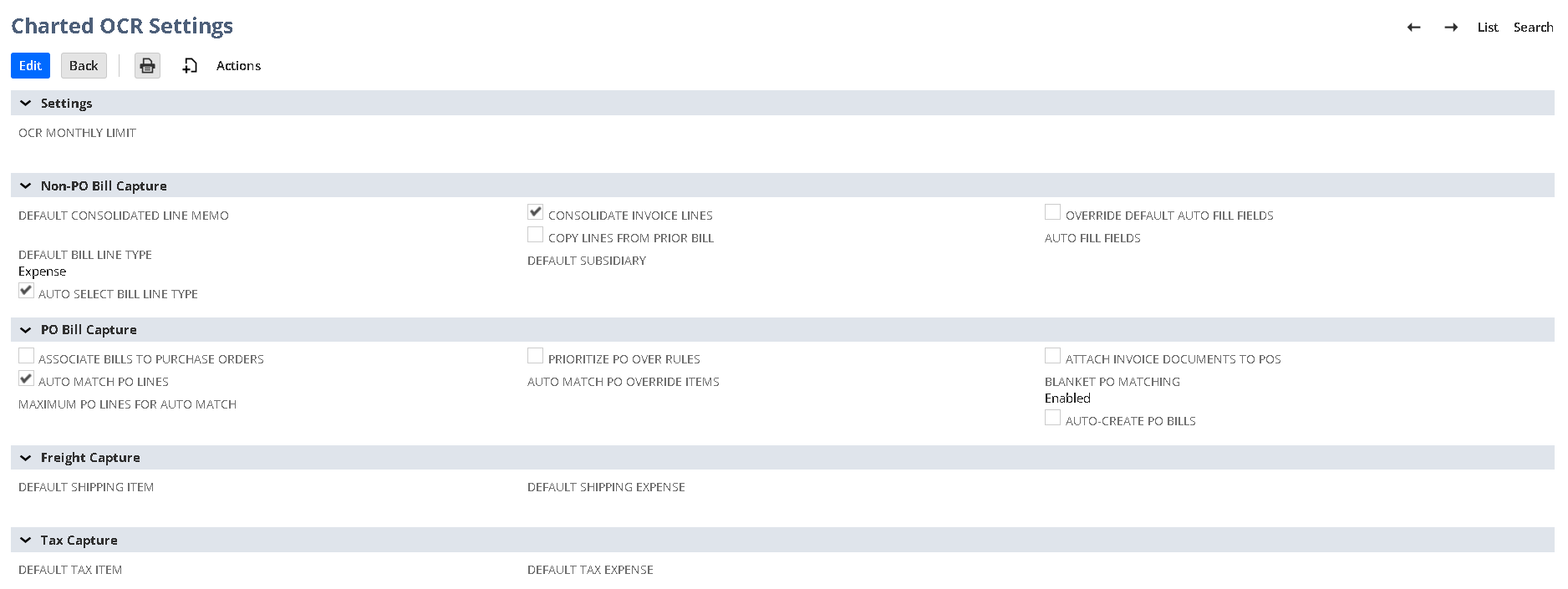
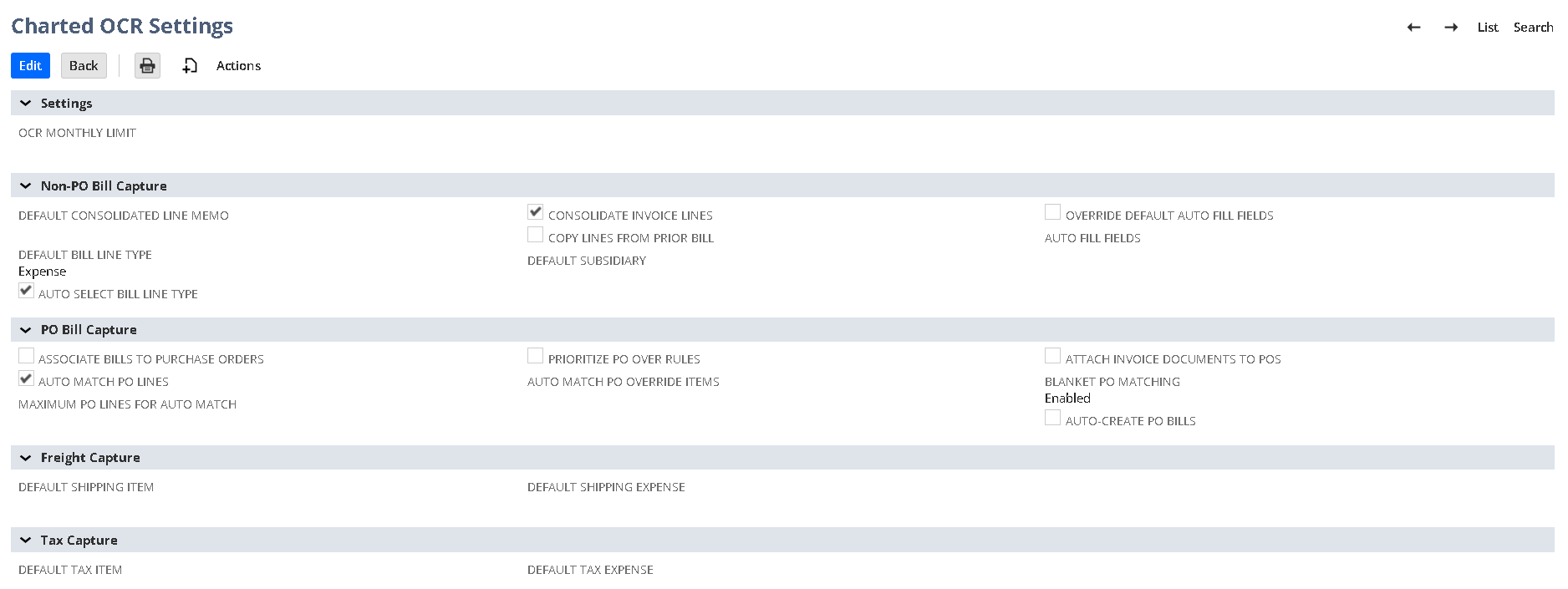
5. Within the **Charted OCR Settings** page, you’ll find multiple sections containing configuration options:\
These configuration options will be discussed separately in the subsections that follow. Editing the standard configuration allows you to tailor how Invoice AI interprets, categorizes, and processes invoices. Each organization has unique billing structures, preferred line types (expense or item), and purchase order requirements. By adjusting these settings, you ensure Invoice AI aligns with your specific workflow and maximizes efficiency in your accounts payable process.
### Default Bill Line Type
The *Default Bill Line Type* dropdown determines whether non-PO invoices default to *Expense* or *Item* lines in *NetSuite* when it cannot be determined by previous history. This is most common during the first bill entry for a new vendor. Configuring it is essential because different businesses may commonly process invoices as service-based expenses or goods-based items. Selecting the proper default reduces manual adjustments when creating vendor bills, ensuring smoother invoice handling and matching your typical accounting practices.
1. If you want to automatically classify non-PO bills, go to the **Charted OCR Settings** page:\
2. To locate the correct configuration area, find the **Default Bill Line Type** dropdown under the **Non-PO Bill Capture** section:
3. Once you’re ready to make changes, click the **Edit** button to enable editing:\
4. Depending on whether most non-PO bills are for services or products, select **Expense** for services/fees or **Item** for products/inventory:\
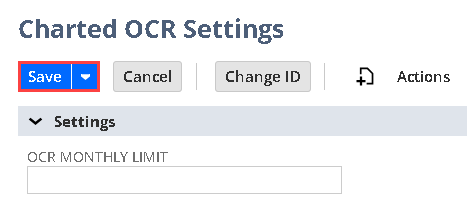
5. Finally, to apply your preference, click the **Save** button:\
### Configure **Autofill Settings**
The **Autofill Settings** section allows you to specify which fields *Invoice AI* should automatically populate for **non-PO bills** based on historical data. These settings ensure that invoices without purchase orders are still coded accurately and consistently according to your organization’s prior accounting behavior.
By default, *Invoice AI* automatically fills in several standard fields using learned patterns from previously processed invoices:
* **Expense Lines:** Category (if available), Account, Department, Class, and Location
* **Item Lines:** Item, Department, Class, and Location
If you expect *Invoice AI* to populate additional fields — for example, a custom classification or header field — you’ll need to explicitly define those field IDs here.\
This approach ensures flexibility: organizations that prefer to manage certain fields manually can simply leave them out of this list, while those that want more automation can expand it to include additional mappings.
#### **Auto fill Fields**
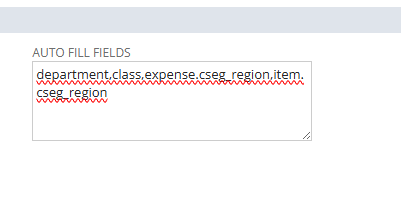
This field is used to enter a comma-separated list of **body-level** and/or **line-level** field IDs that *Invoice AI* should attempt to populate automatically when creating a Vendor Bill.
If **Override default autofill fields** is *not enabled*, these fields will be filled *in addition to* the standard fields listed above.
**Example format:**
```
body_field_id, expense.expense_line_field_id, item.item_line_field_id
```
**Examples:**
* To autofill a custom memo field at the header level and a custom department field on expense lines:
```
custbody_invoice_memo, expense.custcol_custom_dept
```
* To autofill a project field on item lines only:
```
item.custcol_project_ref
```
If you process invoices without purchase orders, it’s critical to define which fields *Invoice AI* should attempt to complete on your behalf. Without these definitions, only the default autofill behavior (category, account, department, class, and location) will apply.
Properly configuring this section allows *Invoice AI* to more closely mirror your team’s historical coding practices — reducing manual data entry and ensuring consistency across non-PO invoices.
### Purchase Order Association
If your organization uses purchase orders frequently, you'll want to turn this on so scanned invoices can be associated to existing purchase orders. Doing so ensures that the invoices and POs remain linked in *NetSuite*.
1. If you need to link invoices with their corresponding purchase orders, start by going to the **Charted OCR Settings** page:\
2. To enable this crucial PO linking, locate the **Associate Bills to Purchase Orders** checkbox under the **PO Bill Capture** section:\
3. Once you’re ready to make changes, click the **Edit** button to enable editing:\
4. Checking this option ensures a **Purchase Order** dropdown appears on the **Vendor Bill** form, so you can associate scanned invoices with the correct PO:\
\
\
The *Purchase Order* dropdown is important because it lets you directly associate a scanned invoice with the corresponding PO, ensuring more accurate matching, streamlined three-way match verification, and reduced risk of errors or duplicate entries in *NetSuite*.\
5. Finally, to let *Invoice AI* properly match invoices to existing POs, click the **Save** button:\
### Auto Match PO Lines
Extracted invoice lines will be auto-matched to open lines on the selected PO.
#### If Using POs for all Purchases
If you are using POs, Charted can be configured to automatically link Vendor Bills to the correct Purchase Order if a PO number is referenced on the associated PDF. Details from linked Purchase Orders (including open lines) will automatically be copied to the Vendor Bill.
PO line matching can be used to automatically populate quantity and amount on Vendor Bill lines based on the associated PO lines. PO line matching uses the following logic:
1. All open lines copied from the PO to the Vendor Bill will default to a quantity/amount of 0.
2. These Vendor Bill lines will be matched to lines from the invoice PDF (extracted via Invoice AI) based on item MPN, item name, item vendor name and PO line description. If a match is found, the quantity/amount extracted from the invoice PDF will be set accordingly on the matched Vendor Bill line.
3. For any unmatched Vendor Bill lines, quantity and amount remain set to 0. This allows the Vendor Bill to be saved without having to delete non-applicable lines. It also allows users to edit the quantities/amounts after a Vendor Bill has been saved.
#### If Using POs for Some Purchases
If you use POs for some purchases but not for others, Invoice AI will first attempt to match Vendor Bills to POs as noted above.
If a Vendor Bill is not matched to a PO, the line type (item/expense) last used for the Vendor will automatically be selected for the new bill. If the line type cannot be determined (e.g. you’re entering the first Vendor Bill for a new Vendor), expense lines will automatically be used.
Note that Vendor Bills can be manually associated to POs if Invoice AI fails to find the appropriate match.
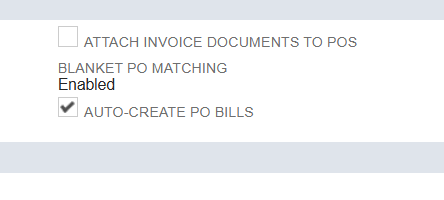
### Auto-Create PO Bills
To enable the ability to automatically create PO-backed bills, locate the **Auto-Create PO Bills** checkbox under the **PO Bill Capture** section:\
### Email Exception Notifications
The *OCR Email Exception Notification* feature lets you assign a specific recipient to receive alerts whenever an incoming email fails to meet *Invoice AI’s* PDF requirements. Since *Invoice AI* relies on PDF attachments for accurate scanning, any email missing a valid PDF — or lacking an attachment altogether — cannot be processed. By configuring this setting, you ensure that someone in your organization is promptly notified of these exceptions, preventing invoices from going unnoticed or improperly handled.
Use the steps below to configure *OCR Email Exception Notification:*
1. To make sure someone is alerted whenever an email lacks a valid PDF, go to the **Charted OCR Settings** page:\
2. Next, to access the necessary configuration, scroll down to the bottom of the page until you reach the **Advanced Settings** section:\
3. Within **Advanced Settings**, find the **OCR Email Exception Notification** dropdown:\
4. Once you’re ready to make changes, click the **Edit** button:\
5. If you’d like a specific person to receive email alerts, select the appropriate employee record or group from the dropdown:\
6. Finally, to ensure notifications are sent out, click **Save**:\
### Consolidating Invoice Lines
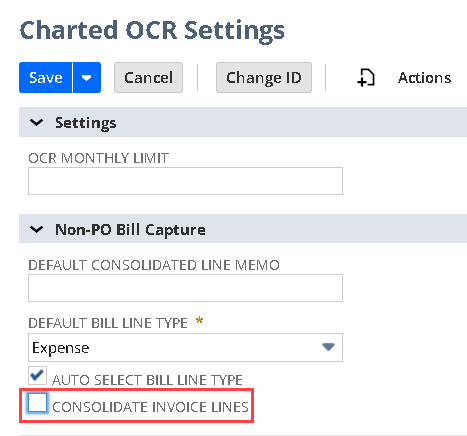
The *Consolidate Invoice Lines* checkbox determines whether non-PO invoices appear as multiple individual lines or as one summarized line on the vendor bill. This choice lets you either keep detailed information for more granular tracking or streamline the invoice into a single total, depending on your organization’s preference.
To consolidate invoice lines from the **Charted OCR Settings,** follow these steps:
1. If you need to control how many lines appear on vendor bills, go to the **Charted OCR Settings** page:\
2. To locate the relevant option, look for the **Consolidate Invoice Lines** checkbox under the **Non-PO Bill Capture** section:\
3. Once you’re ready to configure your line item display, click the **Edit** button to enable editing:\
4. If you prefer a single summarized line, check the **Consolidate Invoice Lines** checkbox (or leave it unchecked for detailed entries):
5. Finally, to apply your preferred approach, click **Save**:\
Line consolidation offers the flexibility to display every invoice line as a separate entry in NetSuite or merge them into a single summarized amount. Each organization’s preference varies, with some valuing detailed line items for reporting, while others only need a total invoice figure. If you have outliers — like legal firms generating extensive itemization — vendor-specific settings let you override the default approach and consolidate or expand lines as needed for those particular vendors.
---
# Agent Instructions
This documentation is published with GitBook. GitBook is the documentation platform designed so that both humans and AI agents can read, navigate, and reason over technical content effectively. Learn more at gitbook.com.
## Querying This Documentation
If you need additional information that is not directly available in this page, you can query the documentation by asking a question.
Perform an HTTP GET request on the following URL with the `ask` and `goal` query parameters:
```
GET https://docs.charted.com/ap-automation/charted-configuration/invoice-ai/advanced-invoice-ai-settings.md?ask=&goal=
```
`ask` is the immediate question: it should be specific, self-contained, and written in natural language.
`goal` is what the user is ultimately trying to achieve, the reason they need the answer. Sharing it helps GitBook give you a better, more relevant answer. A goal is most helpful when it describes the outcome the user wants rather than restating the question. For example, with `ask=how do I create an API token`, a goal like `automate deployments from our CI pipeline` lets GitBook tailor the answer to that use case.
The response will contain a direct answer to the question and relevant excerpts and sources from the documentation.
Use this mechanism when the answer is not explicitly present in the current page, you need clarification or additional context, or you want to retrieve related documentation sections.