> For the complete documentation index, see [llms.txt](https://docs.charted.com/ap-automation/llms.txt). Markdown versions of documentation pages are available by appending `.md` to page URLs; this page is available as [Markdown](https://docs.charted.com/ap-automation/charted-configuration/approval-automation/record-locking-and-resubmission-thresholds.md).
# Record Locking & Resubmission Thresholds
### **Abstract**
Administrators can configure record locking rules and resubmission thresholds in *NetSuite* to enforce control over vendor bill changes during the approval process. These settings help prevent unauthorized edits and ensure that any meaningful change to a transaction — such as a price increase — goes through a new round of review. For example, if a user increases a bill total after approval, the system can automatically lock the record or trigger resubmission to protect financial accuracy.
This article covers configuring the *Record Locking* and *Approval Resubmission* tabs in the *Approval Workflow Automation (AWA)* *Settings*.
### **Configuring the Record Locking Settings**
The **Record Locking** allows you to restrict editing access to records while they are pending approval or after they have been fully approved. This ensures that changes cannot be made without explicit permission from approved user roles.
Follow these steps to configure **Record Locking** settings:
1. From the **AWA Approval Record Type Settings**, locate and select the **Record Locking** tab:\
2. Then, to prevent users from editing records during the approval process, check the **LOCK RECORDS PENDING APPROVAL** box. When enabled, users (except for the roles defined below) will be unable to press the **Edit** button on a record while it’s pending approval:\
3. To allow certain roles to edit pending records, select a role from the **EDIT LOCKED SUBMITTED RECORDS ROLES** field:\
\
\
**Note:** It’s recommended that this be set up for the **Administrator** role.\
4. Next, to prevent edits after a record has been fully approved, check the **LOCK RECORDS APPROVED** box:\
\
\
**Note:** When enabled, users (except for the roles defined below) will be unable to press the **Edit** button on a record once it has been fully approved.\
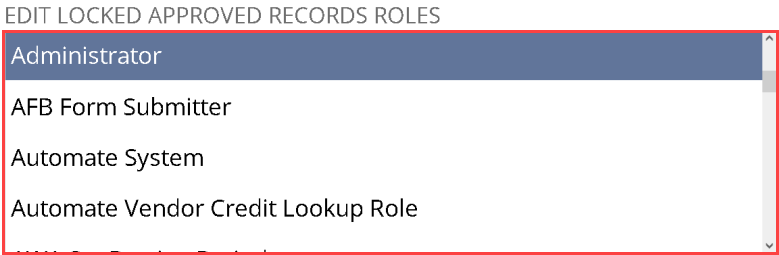
5. To permit post-approval edits for specific roles, select those roles in the **EDIT LOCKED APPROVED RECORDS ROLES** field:\
\
\
**Note:** It’s recommended that this be set up for the **Administrator** role.\
### **Configuring Approval Resubmission Settings**
The **Approval Resubmission** allows you to define thresholds that determine when edits to a vendor bill should trigger reapproval. These controls ensure that important changes — such as price increases or edits to key data — are reviewed again before payment processing. Approval resubmission only applies to records that include a total field, such as vendor bills and other transaction records.
Follow the steps below to configure **Approval Resubmission** settings:\
1. From the **AWA Approval Record Type Settings**, locate and select the **Approval Resubmission** tab:\
2. Then, to trigger resubmission based on a percentage change in the total amount, enter a value in the **TOTAL PERCENT THRESHOLD** field. For instance, entering **5** means the record will require reapproval if the total increases by more than **5%**:\
3. Enter an amount in the **TOTAL AMOUNT THRESHOLD** field to enforce reapproval when a specific dollar value is exceeded. This helps catch significant but low-percentage increases:\

4. Next, select the appropriate value from the **TOTAL AMOUNT CURRENCY** dropdown to define the currency for the dollar-based threshold. If the record uses a different currency, the system will convert it using current exchange rates before applying the threshold:\
5. Then, to require that both the percent and amount thresholds must be exceeded before resubmission is triggered, check the box for **MUST BE WITHIN BOTH THRESHOLDS**:\
\
\
**Note:** When this setting is not enabled, exceeding either threshold will trigger reapproval, which allows this setting to change that behavior and requires both conditions to be met.\
6. Enable the **DECREASES MUST BE WITHIN THRESHOLD** field to include decreases in the resubmission logic. This ensures reductions in total are also evaluated:\
7. Next, select the **AUTO RESUBMIT** option to allow the bill to automatically re-enter the approval flow when thresholds are exceeded:\
8. Then, enable **ANY CHANGE REQUIRES RESUBMISSION** to trigger reapproval for any modification, not just financial edits. This includes changes to text fields or other non-monetary data:\
9. To allow admins to make necessary adjustments without triggering resubmission, select the **EXCLUDE ADMINISTRATORS FROM RESUBMISSION LOGIC** to prevent administrator actions from restarting the approval process:\
This concludes the process of configuring **Record Locking** and **Approval Resubmission** thresholds for vendor bill approvals.
---
# Agent Instructions
This documentation is published with GitBook. GitBook is the documentation platform designed so that both humans and AI agents can read, navigate, and reason over technical content effectively. Learn more at gitbook.com.
## Querying This Documentation
If you need additional information that is not directly available in this page, you can query the documentation by asking a question.
Perform an HTTP GET request on the following URL with the `ask` and `goal` query parameters:
```
GET https://docs.charted.com/ap-automation/charted-configuration/approval-automation/record-locking-and-resubmission-thresholds.md?ask=&goal=
```
`ask` is the immediate question: it should be specific, self-contained, and written in natural language.
`goal` is what the user is ultimately trying to achieve, the reason they need the answer. Sharing it helps GitBook give you a better, more relevant answer. A goal is most helpful when it describes the outcome the user wants rather than restating the question. For example, with `ask=how do I create an API token`, a goal like `automate deployments from our CI pipeline` lets GitBook tailor the answer to that use case.
The response will contain a direct answer to the question and relevant excerpts and sources from the documentation.
Use this mechanism when the answer is not explicitly present in the current page, you need clarification or additional context, or you want to retrieve related documentation sections.