> For the complete documentation index, see [llms.txt](https://docs.charted.com/ap-automation/llms.txt). Markdown versions of documentation pages are available by appending `.md` to page URLs; this page is available as [Markdown](https://docs.charted.com/ap-automation/charted-configuration/approval-automation/approval-settings-global-email-and-super-approver-options.md).
# Approval Settings: Global Email & Super-Approver Options
### **Abstract**
*Approval Settings* define the global configuration for managing approval workflows in *NetSuite* using the *Charted Approval Workflow Automation* (AWA) tool. These settings control how approval-related emails are handled, who can perform high-level approval overrides, and how email responses are processed. Proper configuration ensures that email approvals function reliably and securely while providing administrators control over user roles and approval logic.
This article walks administrators through the process of configuring global approval settings for vendor bill approvals.
### **Accessing Approval Settings and Configuring Email Routing Options**
Before configuring advanced approval settings, you’ll need to access the global **Approval Settings** page and define how approval emails are routed. This section covers how to locate the settings, enable editing, and specify the system email address used for sending and receiving approval-related messages.
Follow these steps to access and configure the **Approval Settings**:
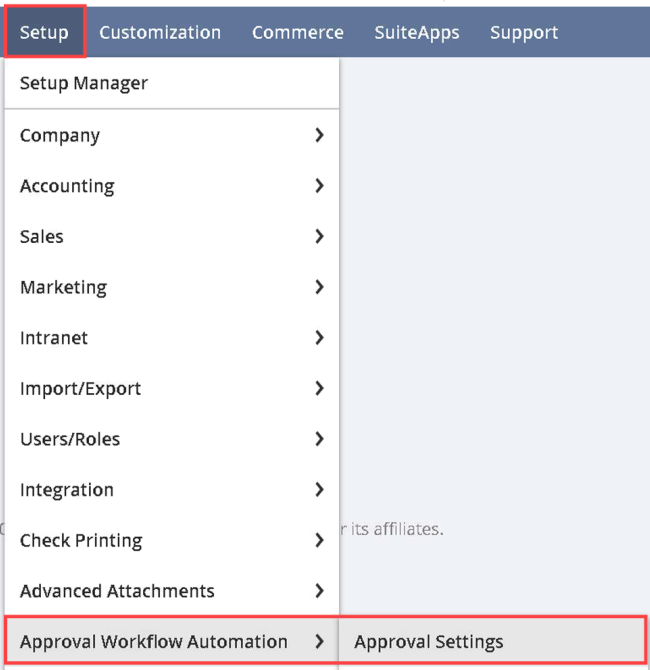
1. To begin the process, navigate to **Setup**, hover over **Approval Workflow Automation**, and select **Approval Settings**:\
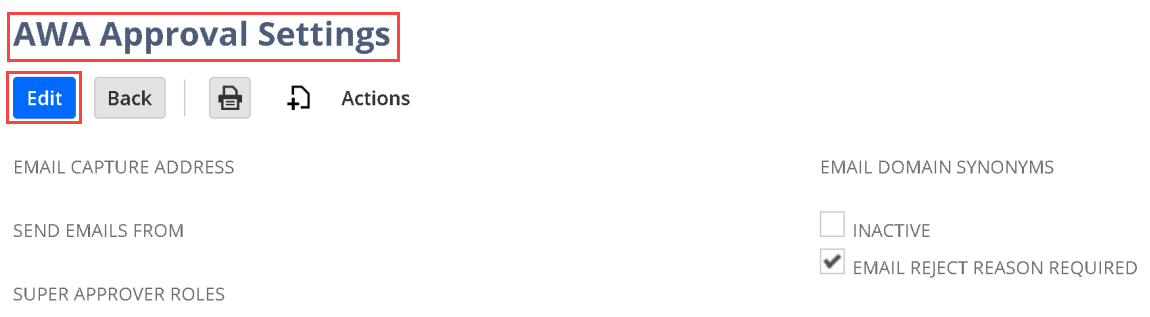
2. Once the **AWA Approval Settings** screen loads, click the **Edit** button to enable editing of the configuration values:\
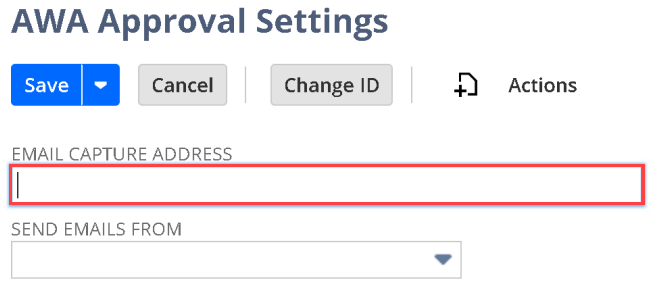
3. To properly route approval responses, locate the **EMAIL CAPTURE ADDRESS** field and enter the email address used to send all approved or reject responses back to *NetSuite* — this should match the address configured in the **Email Plugin**:\
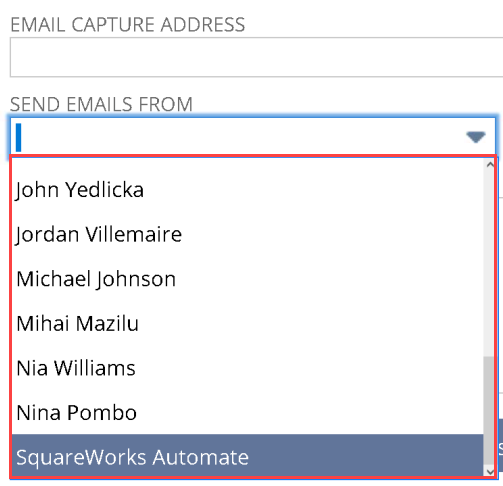
4. Next, to define the sender identity for all approval emails, go to the **SEND EMAILS FROM** section and select an employee from the dropdown — ideally, a general user (e.g., **Charted**) that has been set up in *NetSuite* for this purpose:\
\
\
Note: This email address is used strictly for routing purposes and does not require replies. To prevent disruption from employee turnover, avoid using real employee accounts — assign a dedicated, non-personal (dummy) email address instead.\
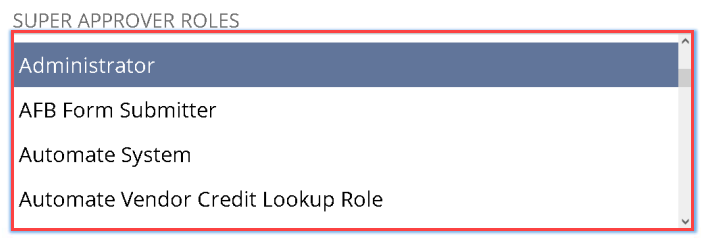
5. To assign users who can act as super approvers, locate the **SUPER APPROVER ROLES** section and select one or more roles — preferably limited to senior roles such as **Administrator** or **AP Lead:**\
\
\
Note: Since **Super Approvers** can skip entire workflow steps or change the approver manually, restrict access to a trusted few.\
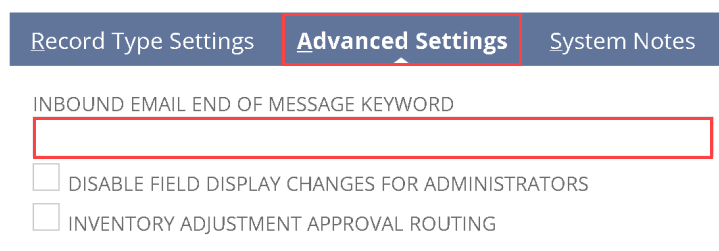
6. Then, to prevent email disclaimers from appearing in approval comments, go to the **Advanced Settings** tab, locate the **INBOUND EMAIL END OF MESSAGE KEYWORD** field, and enter a keyword that designates the end of an email message:\
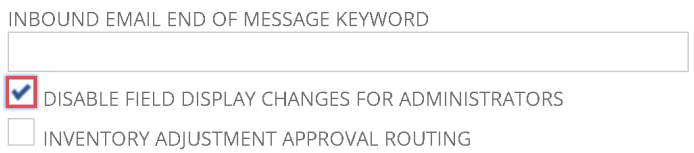
7. To maintain the standard form layout for **Administrators**, check the **DISABLE FIELD DISPLAY CHANGES FOR ADMINISTRATORS** box:\
\
\
When enabled, **AWA** will not alter field visibility for **Admins** — fields like the native **“Next Approver”** will remain visible even if hidden from other users.\
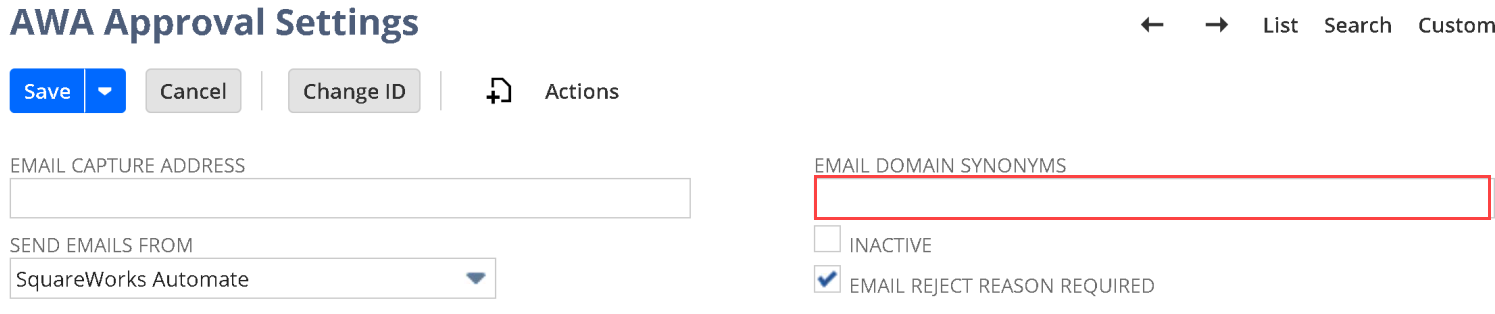
8. On the **EMAIL DOMAIN SYNONYMS** section, add any new domains as synonyms to support email approvals after a domain change — this ensures the system continues to recognize approval responses without requiring updates to individual user records:\
\
\
Note: For example, if email addresses change from **@bankofamerica.com** to **@bofa.com**, add **bofa.com** as a domain synonym to maintain approval functionality.\
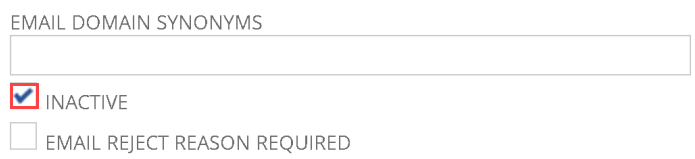
9. To stop all approval processing, check the **INACTIVE** box to inactivate approvals:\
10. Next, check the **EMAIL REJECTION REASON REQUIRED** checkbox to require approvers to enter a reason when rejecting via email:\

\
\
**Note:** Since email-based approvals allow users to act without logging into *NetSuite*, this setting ensures a comment is still captured. While the platform cannot verify the authenticity of the reason, an entry is required for the rejection to go through.\
This concludes the configuration steps for **Approval Settings**.
---
# Agent Instructions
This documentation is published with GitBook. GitBook is the documentation platform designed so that both humans and AI agents can read, navigate, and reason over technical content effectively. Learn more at gitbook.com.
## Querying This Documentation
If you need additional information that is not directly available in this page, you can query the documentation by asking a question.
Perform an HTTP GET request on the following URL with the `ask` and `goal` query parameters:
```
GET https://docs.charted.com/ap-automation/charted-configuration/approval-automation/approval-settings-global-email-and-super-approver-options.md?ask=&goal=
```
`ask` is the immediate question: it should be specific, self-contained, and written in natural language.
`goal` is what the user is ultimately trying to achieve, the reason they need the answer. Sharing it helps GitBook give you a better, more relevant answer. A goal is most helpful when it describes the outcome the user wants rather than restating the question. For example, with `ask=how do I create an API token`, a goal like `automate deployments from our CI pipeline` lets GitBook tailor the answer to that use case.
The response will contain a direct answer to the question and relevant excerpts and sources from the documentation.
Use this mechanism when the answer is not explicitly present in the current page, you need clarification or additional context, or you want to retrieve related documentation sections.