> For the complete documentation index, see [llms.txt](https://docs.charted.com/ap-automation/llms.txt). Markdown versions of documentation pages are available by appending `.md` to page URLs; this page is available as [Markdown](https://docs.charted.com/ap-automation/charted-configuration/advanced-vendor-onboarding/roles-permissions-and-queues.md).
# Roles, Permissions, and Queues
### Abstract
*Advanced Vendor Onboarding* roles, permissions, and queues are essential for companies looking to streamline the way new vendors are introduced and managed within *NetSuite*. Administrators use these configurations to designate who is responsible for vendor onboarding tasks, ensure proper access rights, and set up queues that display all vendors in onboarding or update status. This helps maintain a clear process flow for vendor management, saving time and preventing overlooked vendor requests. An example use case might include automatically routing new vendor records to a designated *Onboarding Manager* role whenever a new vendor needs approval, ensuring no one misses important updates.
This article details how to configure *Roles*, *Permissions*, and *Queues* for *Advanced Vendor Onboarding* within *NetSuite*. It walks you through assigning onboarding managers either by employee or by creating a dedicated role, then setting up the *Vendor Onboarding Queue* and the *Vendor Update Queue* using saved searches. By the end of this guide, you will have clear instructions on controlling who can onboard vendors, customizing search criteria to show relevant vendor records, and ensuring that vendor updates are properly tracked and approved.
Below you will find the complete guide to configuring and managing roles, permissions, and queues for *Advanced Vendor Onboarding* in *NetSuite*. Each section includes an introductory paragraph to explain the context, followed by a numbered list of steps.
### Accessing Vendor Onboarding Settings
Before configuring *Advanced Vendor Onboarding*, you must access the settings page in *NetSuite*.
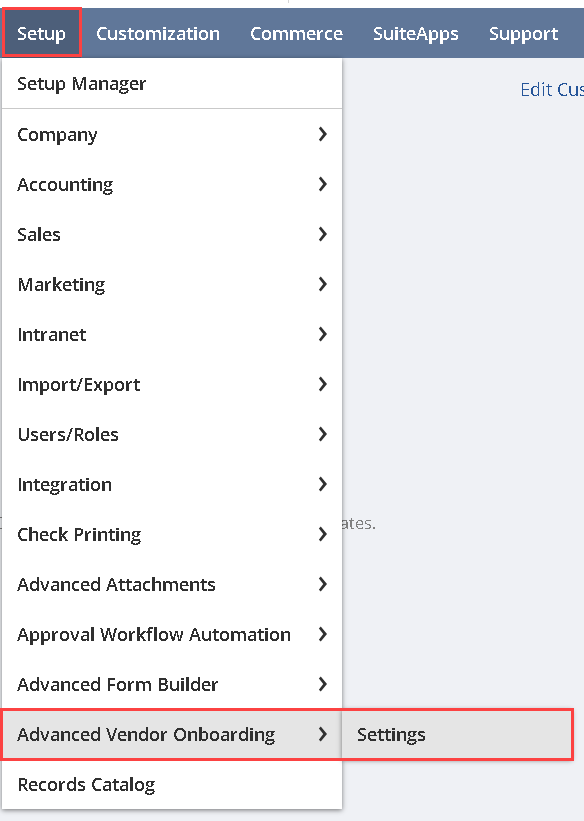
1. If you need to locate the configuration page for *Advanced Vendor Onboarding*, go to **Setup** from your *NetSuite* navigation menu, look for **Advanced Vendor Onboarding**, then select **Settings**:\
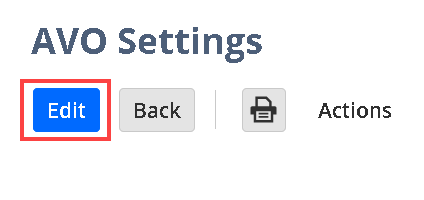
2. If you want to make any changes to these settings, click the **Edit** button:
### Assigning Onboarding Managers
Onboarding managers are the individuals or groups responsible for reviewing and approving new vendors. You can assign onboarding managers directly to an employee or by using a dedicated role. While both methods work, using roles often simplifies maintenance, especially when covering out-of-office situations or employee turnover.
1. If you prefer to assign **Onboarding Managers** individually, open the relevant employee record in *NetSuite* and locate the area where roles or permissions can be granted:
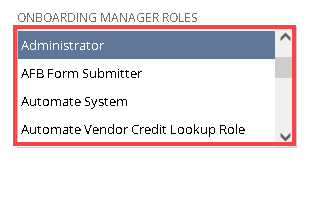
2. If you want to designate a specific group, select a custom role from the **Onboarding Manager Roles** dropdown**:**
3. Once you’re ready to streamline administrator tasks, assign this custom role to any employees who should be permitted to onboard vendors:
Note: If you wish to accommodate staff changes, use manager roles so that when an employee leaves or is out of office, you can seamlessly reassign the role without recreating individual permissions.
4. Once you decide on the information that best suits your workflow, **save** your changes to finalize the updated queue:
### Configuring the Vendor Onboarding Queue
The *Vendor Onboarding Queue* is a saved search that displays all vendors currently going through the onboarding process. This ensures onboarding managers know exactly which vendors need review and approval.
1. To track vendors awaiting approval, locate the **Vendor Onboarding Queue** saved search from the **AVO Settings** page:
2. If you need to customize which fields appear, click the **Edit** button within the saved search to add or remove fields (e.g., vendor name, status, onboarding date):
3. To update the queue that shows all your vendors who are onboarding right now, select the **Vendor Onboarding Queue** dropdown:
4. Once you decide on the information that best suits your workflow, click the **Save** button to reflect your changes:
### Configuring the Vendor Update Queue
In addition to onboarding, there may be situations where existing vendors submit updated information that requires approval. This is where the saved search for the **Vendor Update Queue** comes in, functioning similarly to the **Vendor Onboarding Queue** but focusing on vendors with pending changes.
1. If you want to manage vendor record updates, open the **Vendor Update Queue** saved search from the **AVO Settings** page:
2. To update the **Vendor Update Queue**, click the **Edit** button to enable editing:
3. To select the queue that shows all your vendors in an update request status, select the AVO Vendor Update Queue from the **Vendor Update Queue** dropdown:
4. After confirming you have the fields required for review and approval, save the search changes by clicking the **Save** button:
By following the steps above, you will establish a streamlined approach to **Advanced Vendor Onboarding** in *NetSuite*.
---
# Agent Instructions
This documentation is published with GitBook. GitBook is the documentation platform designed so that both humans and AI agents can read, navigate, and reason over technical content effectively. Learn more at gitbook.com.
## Querying This Documentation
If you need additional information that is not directly available in this page, you can query the documentation dynamically by asking a question.
Perform an HTTP GET request on the current page URL with the `ask` query parameter, and the optional `goal` query parameter:
```
GET https://docs.charted.com/ap-automation/charted-configuration/advanced-vendor-onboarding/roles-permissions-and-queues.md?ask=&goal=
```
`ask` is the immediate question: it should be specific, self-contained, and written in natural language.
`goal` is optional and describes the broader end goal you are ultimately trying to accomplish on behalf of the user. GitBook uses it to tailor the answer towards what is most useful for that goal.
The response will contain a direct answer to the question and relevant excerpts and sources from the documentation.
Use this mechanism when the answer is not explicitly present in the current page, you need clarification or additional context, or you want to retrieve related documentation sections.