> For the complete documentation index, see [llms.txt](https://docs.charted.com/ap-automation/llms.txt). Markdown versions of documentation pages are available by appending `.md` to page URLs; this page is available as [Markdown](https://docs.charted.com/ap-automation/charted-configuration/advanced-vendor-onboarding/installing-and-updating-the-bundle.md).
# Installing and Updating the Bundle
### Abstract
Administrators who manage *NetSuite* often require a streamlined solution for incorporating advanced vendor onboarding processes into their environment. By installing and updating this *SuiteApp*, users gain the ability to automate and simplify vendor onboarding steps, ensuring a more efficient procurement workflow. For example, a high-volume organization might install this bundle to reduce manual entry and accelerate new vendor setup, thus freeing staff to focus on higher-value tasks.
This knowledge base article provides end-to-end guidance on installing and updating the *Advanced Vendor Onboarding* bundle in *NetSuite*. It covers prerequisites such as the required role and permissions, navigating to the correct *NetSuite* module to locate the bundle (using its numeric ID), and confirming its successful installation. You will also learn the best practices for updating the bundle to ensure that you’re always running the latest version and benefiting from enhancements or fixes.
Below is a comprehensive guide on installing and updating the *Advanced Vendor Onboarding* bundle in *NetSuite*. Make sure you have the Administrator role (or equivalent) before proceeding.
### Prerequisites
1. You must have an **Administrator** (or equivalent full-access) role in *NetSuite*.
2. Ensure you have the required permissions to search and install bundles in the **Customization** section of *NetSuite*.
### Installing the Advanced Vendor Onboarding Bundle
The *Advanced Vendor Onboarding* bundle equips *NetSuite* with features to streamline vendor onboarding and reduce manual entries. By installing the bundle, you grant the solution provider permission to deploy essential files and scripts that automate these workflows.
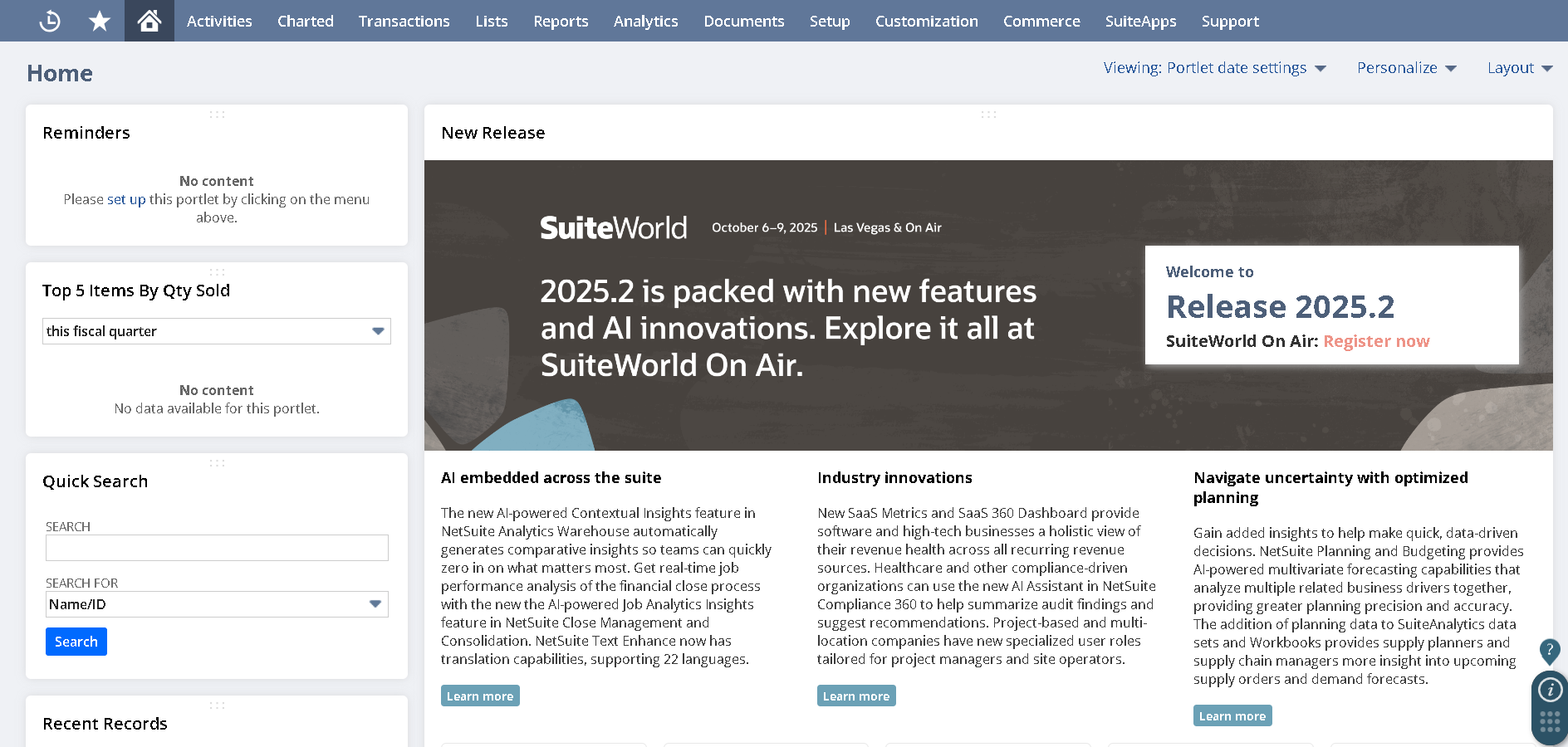
1. If you need to log in with sufficient privileges, open *NetSuite* as an **Administrator** so you can access **SuiteBundler** features:
2. Once you’re ready to install the bundle, click **Customization**, then select **SuiteBundler**, and afterward choose **Search & Install Bundles**:\
3. If you have to find the correct bundle, enter **448491** in the *Keywords* text field and click the **Search** button:
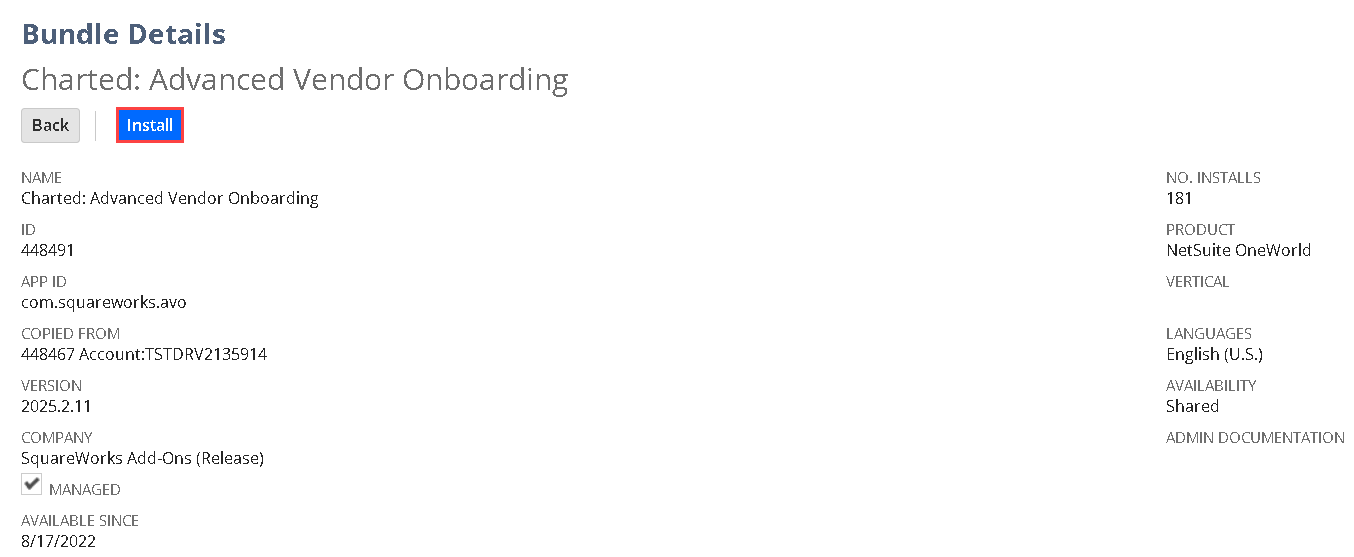
4. To confirm you’re installing the correct product, locate the **Charted: Advanced Vendor Onboarding** listing from the search results and click on it to open the **Bundle Details**:\
5. Once you confirm the details from the *Bundle Details* screen, click the **Install** button to begin the installation process:\
**Note:** If you want to proceed with granting permission for updates, choose **Yes** in the prompt that appears (allowing the solution provider to install updates when needed), and once you complete those steps, wait for *NetSuite* to finish the installation — this process can take a while before the next screen fully loads.
### Updating the Advanced Vendor Onboarding Bundle
Regularly updating the bundle helps ensure you’re using the latest automation features and bug fixes. The update process closely mirrors the installation steps, ensuring minimal downtime or disruption.
1. To verify the installed version, click **Customization** in the *NetSuite* main menu, select **SuiteBundler**, and then choose **Search & Install Bundles**:\
2. To locate the **Advanced Vendor Onboarding** bundle, enter **448491** in the *Keywords* field:\
3. Once you need to verify if an update is available, click on the bundle to open it:\
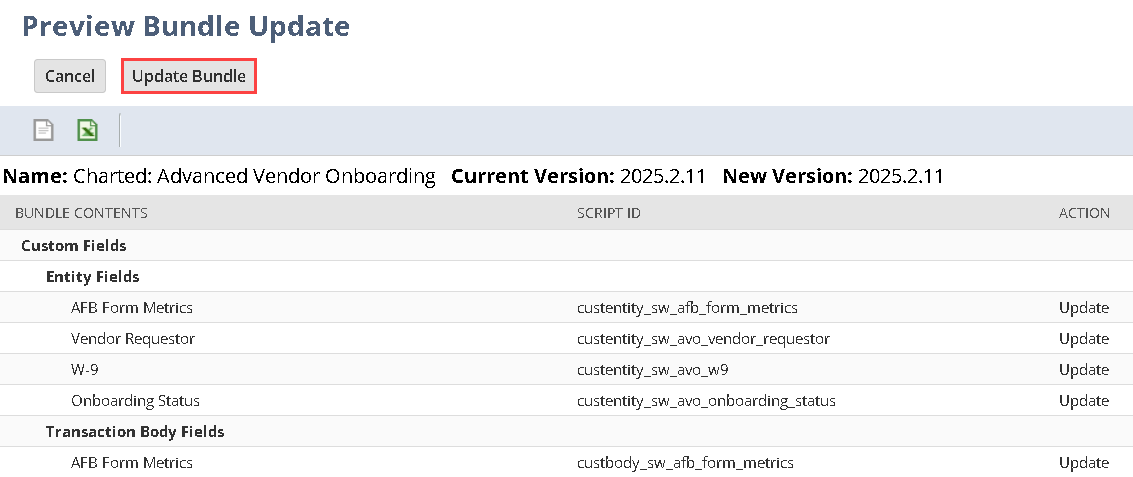
4. If there’s a new version available, click on **Update** to let *NetSuite* apply the latest changes from the solution provider:\
5. Once you need to finalize the new version, confirm your installation selection using any security or permissions prompts that appear.
---
# Agent Instructions
This documentation is published with GitBook. GitBook is the documentation platform designed so that both humans and AI agents can read, navigate, and reason over technical content effectively. Learn more at gitbook.com.
## Querying This Documentation
If you need additional information that is not directly available in this page, you can query the documentation dynamically by asking a question.
Perform an HTTP GET request on the current page URL with the `ask` query parameter, and the optional `goal` query parameter:
```
GET https://docs.charted.com/ap-automation/charted-configuration/advanced-vendor-onboarding/installing-and-updating-the-bundle.md?ask=&goal=
```
`ask` is the immediate question: it should be specific, self-contained, and written in natural language.
`goal` is optional and describes the broader end goal you are ultimately trying to accomplish on behalf of the user. GitBook uses it to tailor the answer towards what is most useful for that goal.
The response will contain a direct answer to the question and relevant excerpts and sources from the documentation.
Use this mechanism when the answer is not explicitly present in the current page, you need clarification or additional context, or you want to retrieve related documentation sections.