> For the complete documentation index, see [llms.txt](https://docs.charted.com/ap-automation/llms.txt). Markdown versions of documentation pages are available by appending `.md` to page URLs; this page is available as [Markdown](https://docs.charted.com/ap-automation/charted-configuration/advanced-document-management/configuring-advanced-attachment-settings.md).
# Configuring Advanced Attachment Settings
### Abstract
*NetSuite’s Advanced Attachment* functionality helps organizations centralize and secure how documents are attached to records across departments. This is particularly useful when files like invoices, contracts, or receipts need to be restricted by role or clearly osrganized in one location. For example, an accounting team managing vendor records can use this feature to store payment confirmations under a dedicated **Files** tab that only financial users can access.
This article outlines the steps required to configure **Advanced Attachment Settings** in *NetSuite*. It covers enabling the core feature, activating it across all or selected record types, customizing tab labels, and setting role-based access to control visibility.
### Enable Advanced Attachment Settings
Enabling **Advanced Attachment Settings** activates document management features that allow attachments to be added across record types, organized under a custom tab, and restricted by role. This step is required before any **Advanced Document Management** capabilities can be used.
Follow these steps to enable **Advanced Attachment** functionality:
1. Once the Advanced Attachment bundle is installed, the next step is to enable it. To access the configuration page, go to the **Setup** menu, hover over **Advanced Attachments**, and select the **Settings** tab:\
2. Once the settings page opens, click the **Edit** button to switch to edit mode:
3. Under the **Advanced Attachment Settings** section, check the **ENABLED** box to turn on this functionality:\
\
When this box is unchecked, the feature is completely disabled, and no **Advanced Attachment** options will function.
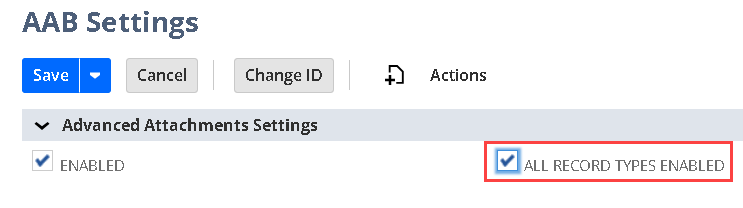
4. To apply this functionality to all common *NetSuite* records, check the **ALL RECORD TYPES ENABLED** box:\
5. When you click on the **ALL RECORD TYPES ENABLED**, a **Field Help** screen will appear showing a list of record types this setting applies to:\
\
\
These are the standard record types that will support **Advanced Document Management**.\
\
\
**Note:** If customers enable this field but have not purchased all record types as part of their licensing, they will receive an error message when attempting to use unsupported record types. If a customer has purchased only a subset of record types, it is recommended that they leave this checkbox unchecked and instead individually specify which record types should be enabled.
6. In the **FILE TAB NAME** field, enter a name for the tab where attachments will appear, for example, **Files**:\
7. In the **Audience** section, define which roles should have access to this feature by selecting them from the **ROLES** dropdown. For instance, choose **A/P Clerk** or **Accountant** from the dropdown to restrict usage:\
8. If no roles are selected, anyone with access to the record will also have access to the **Advanced Attachment** tab unless further restricted in the **New AAB Record Type Settings** section. Click the **Save** button to apply the changes:\
This concludes the process of *Configuring Advanced Attachment Settings* in *NetSuite*.
---
# Agent Instructions
This documentation is published with GitBook. GitBook is the documentation platform designed so that both humans and AI agents can read, navigate, and reason over technical content effectively. Learn more at gitbook.com.
## Querying This Documentation
If you need additional information that is not directly available in this page, you can query the documentation by asking a question.
Perform an HTTP GET request on the following URL with the `ask` and `goal` query parameters:
```
GET https://docs.charted.com/ap-automation/charted-configuration/advanced-document-management/configuring-advanced-attachment-settings.md?ask=&goal=
```
`ask` is the immediate question: it should be specific, self-contained, and written in natural language.
`goal` is what the user is ultimately trying to achieve, the reason they need the answer. Sharing it helps GitBook give you a better, more relevant answer. A goal is most helpful when it describes the outcome the user wants rather than restating the question. For example, with `ask=how do I create an API token`, a goal like `automate deployments from our CI pipeline` lets GitBook tailor the answer to that use case.
The response will contain a direct answer to the question and relevant excerpts and sources from the documentation.
Use this mechanism when the answer is not explicitly present in the current page, you need clarification or additional context, or you want to retrieve related documentation sections.