> For the complete documentation index, see [llms.txt](https://docs.charted.com/ap-automation/llms.txt). Markdown versions of documentation pages are available by appending `.md` to page URLs; this page is available as [Markdown](https://docs.charted.com/ap-automation/charted-configuration/accrual-automation/managing-included-and-excluded-accounts.md).
# Managing Included And Excluded Accounts
### Abstract
Administrators configuring *Accrual Automation* in *NetSuite* need precise control over which accounts appear in the *Accruals Worksheet*. This configuration ensures the worksheet reflects only relevant financial data for more streamlined and accurate accrual calculations. For example, a business might only want to remove accounts like **Office Expenses** from being part of the accrual logic.
This article provides step-by-step instructions for managing included and excluded accounts in the Accrual Automation feature. It explains how to control Accrual Automation account types and how to exclude specific *GL accounts* from the accrual process by referencing their internal IDs.
### Configuring Additional GL Account Types for Accrual Automation
Accrual automation, by default, considers expense-type accounts when generating accrual entries. In many cases, organizations need to account for *Cost of Goods Sold* (COGS), *Other Expenses*, or other *GL* account types to reflect the full scope of their financial activities. By specifying these additional account types, you can extend your accrual process to capture all relevant transactions.
Follow these steps to configure the **GL Account Types**:
1. Begin by accessing the **Charted Platform Features,** then click the **Settings** option under the **Accrual Automation** section:
It will open a new screen for the **Accrual Automation Settings:**\
2. To add to the default list of expense accounts, look for the included **GL Accounts Types** under the **Advanced Settings** page:\

3. If your organization’s accrual process relies on additional account types, select each applicable type (e.g., **Cost of Goods Sold**, **Other Expense**) from the provided options.
4. After choosing the **GL Account Types**, click the **Submit** button to confirm your changes.
\
\
**Note:** Since you’ve included these account types, remember that your **Accrual Worksheet** data will now reflect them in real-time the next time you run the process:
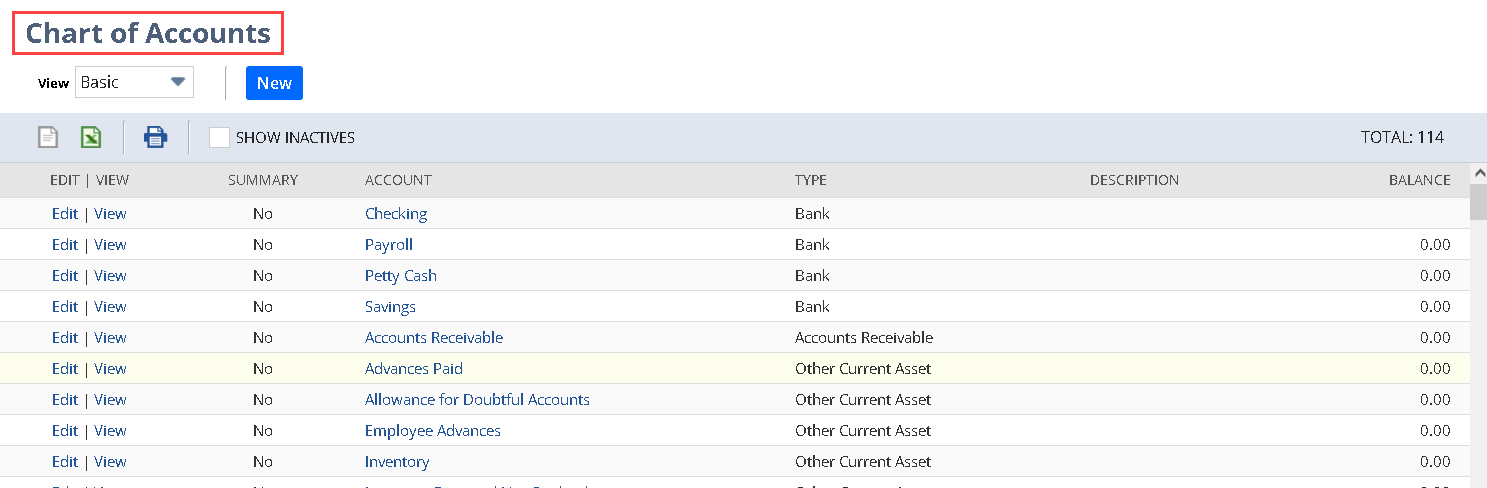
5. Now, to check the added **GL Account Types**, locate the **Chart of Accounts** by going to the **Setup** menu, hovering over **Accounting**, and selecting **Chart of Accounts:**
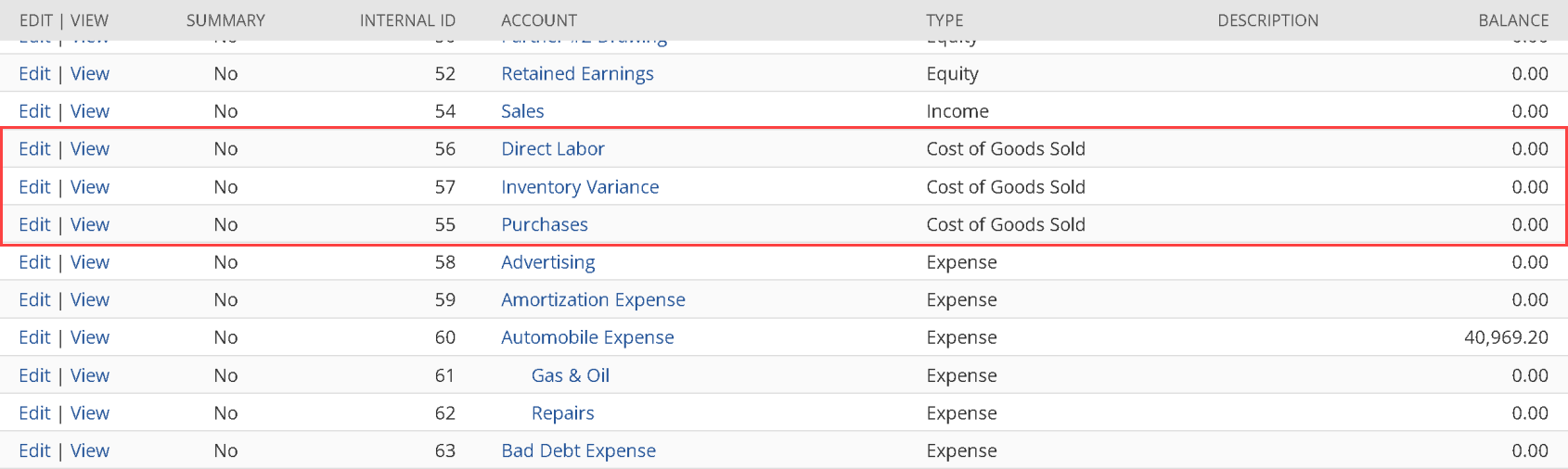
6. Next, it will open the screen for the **Chart of Accounts** with the **GL Account Types** shown under the **Type** column:\
\
\
Simply scroll up and down to locate your added **GL Account Types (**e.g., **Cost of Goods Sold**):\
### Excluding Specific GL Accounts
The Accrual Automation feature also allows administrators to exclude specific GL accounts from being included in the accrual logic. This is useful when certain accounts — such as Office Expenses — should not be part of the accrual process. This can be configured using the **Exclude GL Accounts IDs** field, which accepts a comma-separated list of internal IDs associated with the accounts to be excluded.
Follow the steps below to exclude GL accounts from the accrual calculation:
1. To begin the process, go back to the **Account Automation Settings** section and click the **Settings** link under of the **Accrual Automation** module:\
2. Once inside the settings, scroll to the **Advanced Settings** section. If you need to exclude one or more accounts, locate the field labeled **Exclude GL Accounts IDs**:\
3. To correctly fill out this field, you will need to know the internal IDs of the accounts you want to exclude. To retrieve these IDs, go to the **Setup** menu, hover over **Accounting**, and click the **Chart of Accounts** tab:\
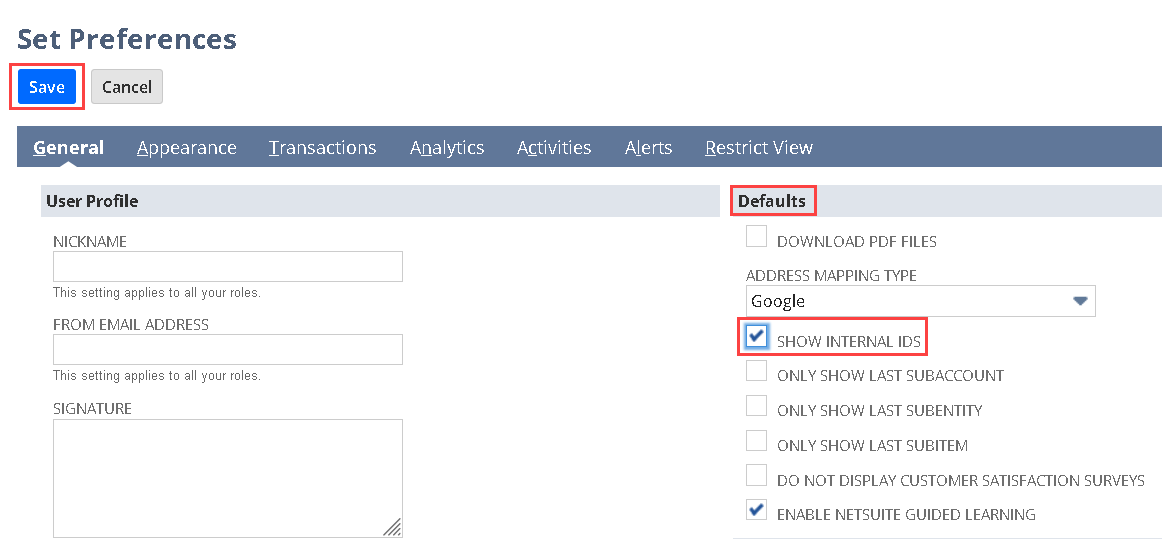
4. Because the internal ID column is not shown by default, you will need to enable it. Click the **Home** icon and then navigate to the **Set Preferences** tab:\
5. In the **Defaults** section, check the box labeled **SHOW INTERNAL IDS** and then click the **Save** button to apply the preference:\
6. After saving, return to the **Chart of Accounts** page and refresh your page. You should now see a column labeled **Internal ID**, which will show the values you need:\
7. For example, if you want to exclude the **Dues & Subscriptions** and **Equipment Rental** accounts, note their internal IDs, such as **67** and **68**:\
8. To complete the exclusion, enter these IDs as a comma-separated list (e.g., **67, 68**) into the **Exclude GL Accounts IDs** field in the **Advanced Settings** section. Once the IDs are entered, click the **Submit** button to save the changes and apply the exclusion:\
\
This concludes the process of managing included and excluded accounts in *Netsuite*.
---
# Agent Instructions
This documentation is published with GitBook. GitBook is the documentation platform designed so that both humans and AI agents can read, navigate, and reason over technical content effectively. Learn more at gitbook.com.
## Querying This Documentation
If you need additional information that is not directly available in this page, you can query the documentation by asking a question.
Perform an HTTP GET request on the following URL with the `ask` and `goal` query parameters:
```
GET https://docs.charted.com/ap-automation/charted-configuration/accrual-automation/managing-included-and-excluded-accounts.md?ask=&goal=
```
`ask` is the immediate question: it should be specific, self-contained, and written in natural language.
`goal` is what the user is ultimately trying to achieve, the reason they need the answer. Sharing it helps GitBook give you a better, more relevant answer. A goal is most helpful when it describes the outcome the user wants rather than restating the question. For example, with `ask=how do I create an API token`, a goal like `automate deployments from our CI pipeline` lets GitBook tailor the answer to that use case.
The response will contain a direct answer to the question and relevant excerpts and sources from the documentation.
Use this mechanism when the answer is not explicitly present in the current page, you need clarification or additional context, or you want to retrieve related documentation sections.